
Help families create together
Even when school is on vacation, Wixie is not! If you use Wixie at school, let parents know their child can continue creating in Wixie at home.
Use these ideas to get parents and children creating together at home. The ideas progress from easy to more difficult, from younger to older, so browse the list to find an idea that works best for your family. Don't forget to share your favorite ideas, too!
1. Complete a coloring page
The coloring pages are an easy way to get comfortable with the tools in Wixie and mimic activities many families already do together. Complete the coloring pages by choosing a color from the color palette and using the paint bucket to fill a space on the page with a click or using the paint brush tool to click and drag to color.
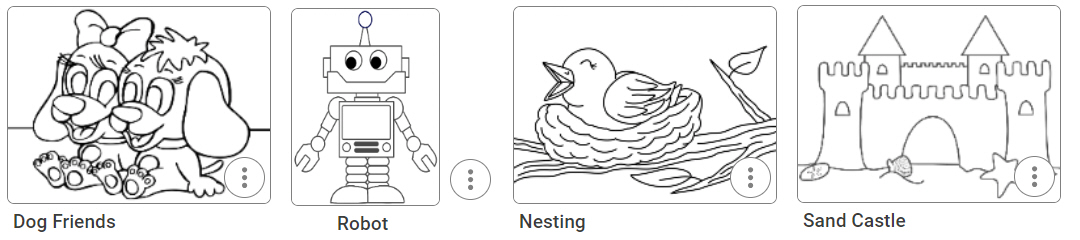
Search "coloring" on the Wixie homepage or open the Coloring Book folder in the Curriculum Activities library > Art folder to find an image they want to use.
2. Create scratch art together
Remember scratch art from your own car trips as a child? Create scratch art images using the Eraser tool on the scratch art templates.
Search "scratch" or browse the Curriculum Activities library > Art folder and then the Scratch Art folder for a range of templates you can use to scratch a picture together!
3. Turn your artwork into digital greetings
If you can’t see family or thank them for gifts in person, create a thank you and share it digitally.
Simply add a voice message to the artwork you and your child have created. Then copy and paste the URL, or go to the File menu, choose Share, and email the message to friends and family.
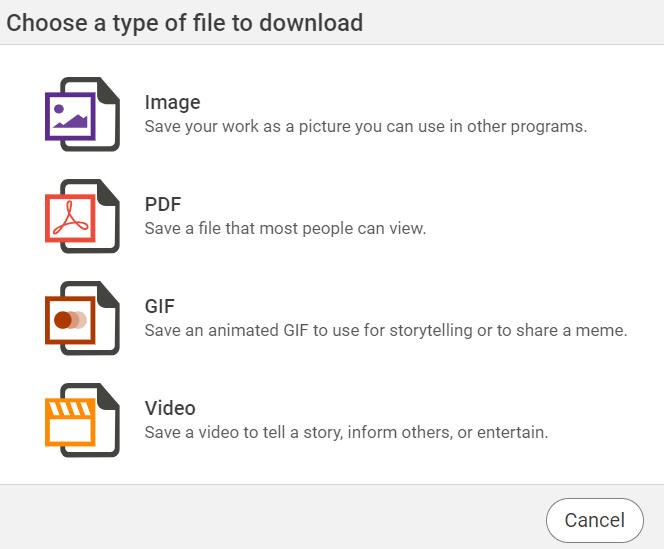
You can also export your project as a video! In the Standard interface, go to the File menu and choose Download. In the Primary interface, click the Share button on the toolbar and choose Download.
4. Send a postcard
Encourage writing skills by asking your child to send a postcard to a friend or family member. They can simply say hello or write and design a postcard from a unique place you visited.
Search "postcard" in the field at the top, or use this summer-themed postcard template.
5. Cook together and share a family recipe
Does your family make a special treat in the summer? Cook or bake it with your child and create a recipe card for it.
Search "recipe" for a template for various themed templates to use. Your child can add text for the ingredients as well as how to bake or cook the recipe. Be sure to copy the address in the URL field at the top and email it to your child's teacher.
6. Design a snow globe memory
People often buy snow globes to help remember events on a vacation. Work with your child to design a snow globe to capture your favorite summer vacation or staycation memory.
Search "globe" for a template or use this snow globe template. Use the paint tools to create the background or scene in the snow globe. Use the Image library to add stickers and images to represent events.
7. Set goals
Writing down your goals brings you one step closer to achieving them! Work with your child to choose a time frame, such as summer or the rest of the year, and set goals they can share with their teacher when they return to school.
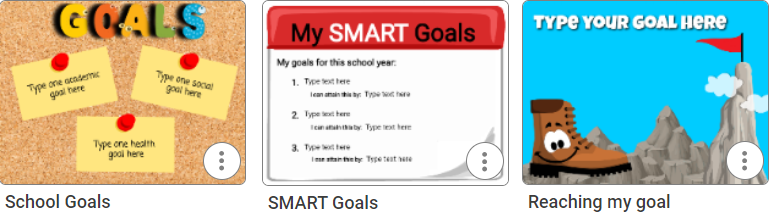
Search "goals" to find a range of templates or simply type them on a blank page and decorate.
Jump in with a choice board
You can use the choice boards in Wixie to find age-appropriate activities to do with primary and elementary learners. Select the image or label for the activity you want to complete and log in to Wixie to begin working.
Need more support and ideas?
There are so many ways to Wixie in school and at home. Explore the links and resources in the Parent Guides to find even more ideas you and your child can do together.
 Effective Integration
 Instructional Design
 Learning Strategies
 Literacy
 Month-by-Month
 Product Ideas
 STEM/STEAM
 Share and Showcase
 Updates
 User Management