
Share classroom activities with parents: family sharing tools
Wixie's family sharing tools make it easy to connect parents and guardians with the work their child is doing in your class. With family sharing, you can instantly send each parent an email with a link to their child's unique work.
If parents have opted in, you can use family sharing options to quickly send an email that shares:
- an update for a single student.
- a classroom newsletter that can be translated into over 50 languages.
- a copy of each student's work on an assignment.
If a student has made significant progress or their work is a great example of growth in a particular area, family sharing means both you, and if you have allowed it, the student can share the student's project with their parents. Then, families can celebrate their child's work at home or you can start a conversation before or continue it after parent conferences.
You can also use the family sharing features to quickly share a project you create to parents for the entire class. Combine Wixie's translation features with Wixie's Family Sharing options to easily communicate with parents whose first language isn't English!
Create and share your own “All About Me” project to introduce yourself to your families as school begins. You can also use Wixie to create a classroom book or give your newsletter a multimedia vibe.

How to Connect Parents
It's easy to set up family sharing. Simply print an invitation from your class roster in Wixie and send it home so parents, guardians, and caregivers can opt-in. Then, each time your students complete projects, you can quickly send an update that connects families to their child's learning.
In order to be able to email parents with student work, they must first opt-in to communication from Wixie. The page showing students work has a convenient Printables button below each class list.

Select it and use the Family Communications Invitations to print a unique invitation for each parent.
Invites contain a QR code parents can use to add their email addresses and opt in. If you are just starting the school year, parents are usually expecting some print material to come home with students.
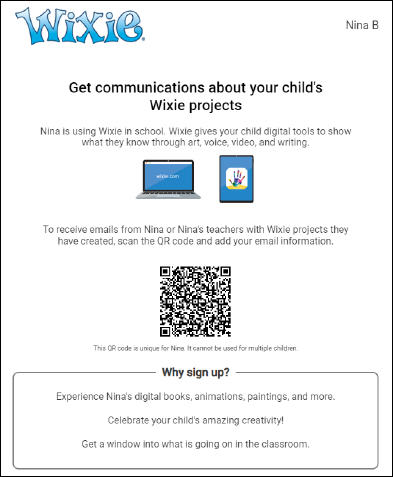
You can access additional family sharing options in your Settings, such as see which parents have opted in or send invitations to additional individuals.
Select your Profile icon, choose Settings, and then select Families from the list.
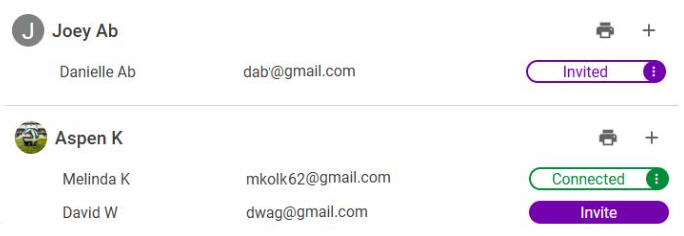
What are you waiting for? Make life easier and build strong school to home connections with family sharing. Everything you need to get started, along with step-by-step directions, can be found in the Family Sharing Guide.
 Effective Integration
 Instructional Design
 Learning Strategies
 Literacy
 Month-by-Month
 Product Ideas
 STEM/STEAM
 Share and Showcase
 Updates
 User Management