
You can invite a student's parent to opt in to communication about their child's work in Wixie.
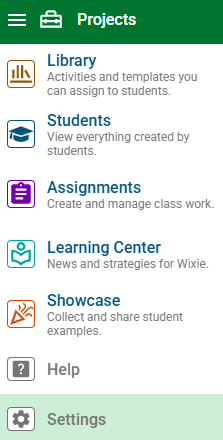
Click the main menu and choose Settings.
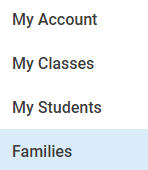
Select the Families button in the list.
You will see a list of students in the first class in your list.
Find the student, whose parent you want to invite. To switch to a different class than the one showing, select the class name and choose a new class.
Click the Print button to print an invitation for an individual student to take home.

This will print a unique invitation you can send home with this student.
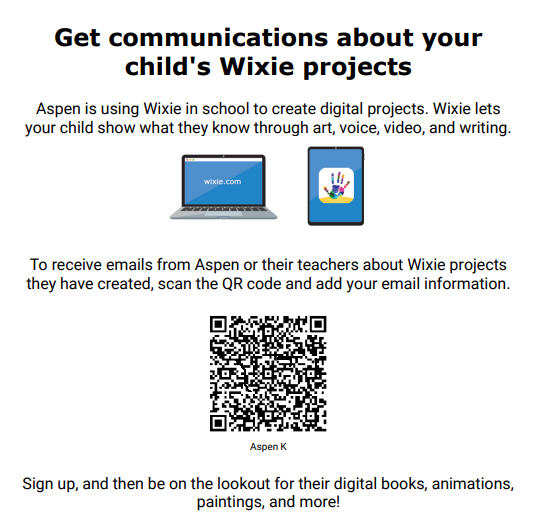
Their parent can scan the QR code to add their email and opt-in to communication.
If you already know the parent's email address, select the + button next to the student's name to send an email invitation.
At the Add Family dialog, enter the parent's first and last name and email address.
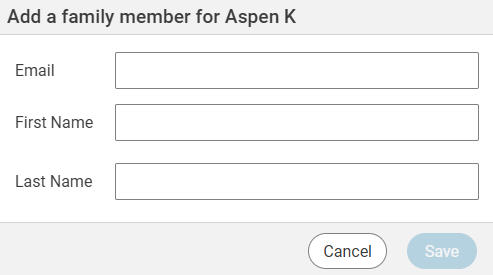
Click Save to return to the family list.
Click the Invite button to send the invitation email.

Parents must still take action to opt-in to communication.