
Wixie Update: Talkies 2.0 and Project Translation!
The development team has been busy and we didn't want to wait to release these amazing new features.
Talkies (2.0)
Students can now turn any image into a talkie, such as:
- artwork they have painted,
- a sticker or image added from the media library,
- or a photo taken with the camera.
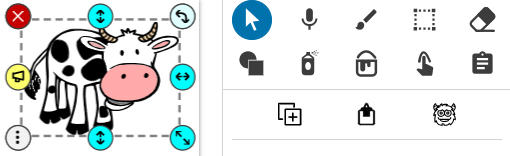
For example, when an image or sticker is selected, the Talkie button shows at the top of the editing panel next to the Duplicate and Glue buttons.
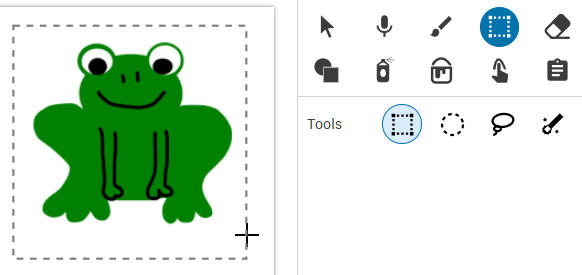
To turn painted artwork into a talkie, select it with the Marquee Selection tool.
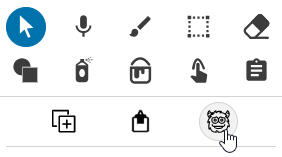
Then, select the Talkies button on the editing panel.
At the Make a Mouth dialog, move the blue handles to the place on the image you want for the mouth.
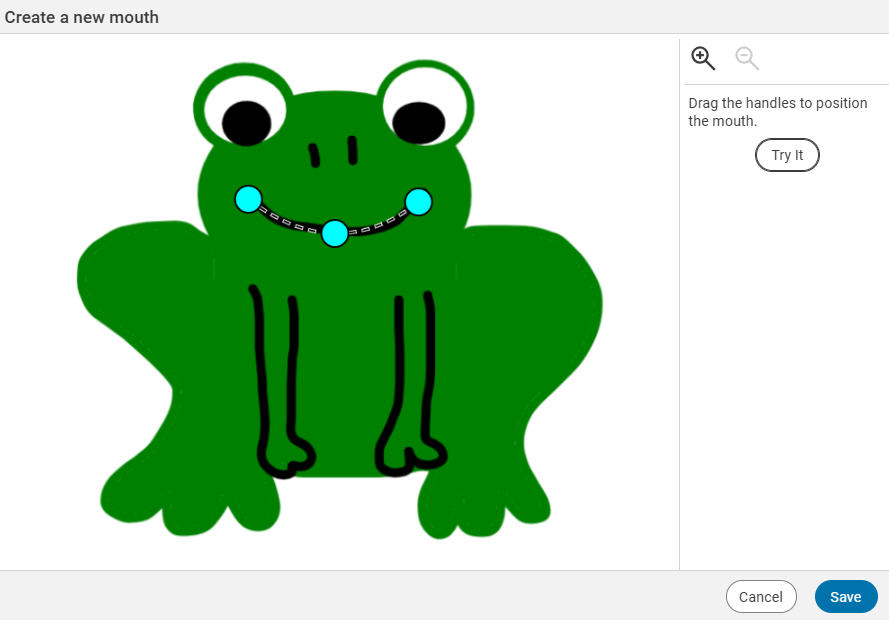
Click the Save button to add text or record your voice to make the artwork speak just like you would with the pre-made Talkie widgets.
A Talkie doesn't have to have a traditional mouth drawn on it. If your painted artwork, doesn't have a mouth, simply place the handles where you want it to be. If you want to personify an object, like the Liberty Bell, create a mouth in a place on the image that makes sense for a mouth.
Project Translation
The last update made it so students could translate your instructions into over 50 languages and now anyone can translate the text in a entire project!
Text Objects
To translate the contents of text object into another language while you are working, select the menu for that object (three dots in the lower left corner) and select Translate.
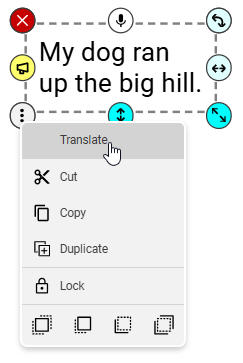
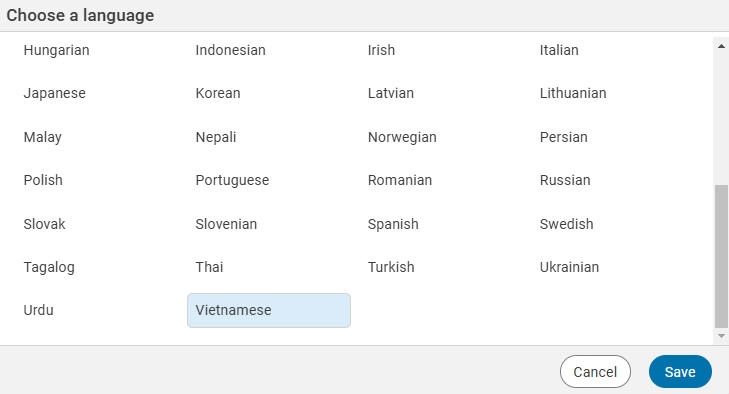
The first time you do this, a Choose a Language dialog will appear.
Choose the language you want to translate to and choose Save.
The text object will translate to that language.
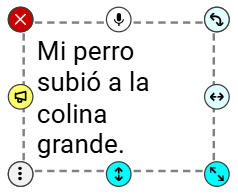
Use the text object menu and choose the Translate option again to return to English.
If you edit the text in the translated text object (properly in that target language), the text will include your changes if you translate back into English.
If you have translated a text object, you can even use the Speak button to have the text read in that language!
Entire Projects
When you share a project, the person viewing the project will see a Translate button on the toolbar.
The first time they select the Translate button, they will need to choose a language.
Each page of the project will translate as it is being viewed. Depending on the complexity of the translation, this may take a few moments, so don't panic if you don't see the translated text objects immediately. They will show when the translation is complete.
This makes it easy to update parents on what is going on in your classroom without having to translate yourself!
Simply create your message in Wixie using a stationery template, a newsletter template, or your own design. Use the Family Sharing tools to automatically send to all connected parents, or copy and paste the project URL into an email.
Parents, families, and guardians can simply use the Translate button to read the update in their native language.