
Using Wixie with preschoolers
Wixie was designed so even the youngest of learners can successfully access technology tools to create and share digital projects. Wixie even includes a Primary Mode with bright icons and a simplified tool set that allows preschoolers to express themselves with paint, images, and their voice while building a healthy technology foundation that goes beyond "edutainment."
Young learners do not have fine motor skills or long attention spans, so it is important to find digital activities that are engaging and simple to do. If you have access to a tablet, selecting and dragging with a finger will be much easier than doing the same motions with a mouse or trackpad.
Adult support is essential to preschooler success. First, preschoolers will need to have adult help to get logged into their individual accounts. Logging in with a QR code can help.
Adults can help preschoolers learn new computer skills, like selecting a tool, dragging to paint, and using a button to add stickers. If you check in periodically with emotional support and encouragement, you probably don't need to sit with a child the entire time. Teach them to ask for help when they need it, and don't answer immediately if you think they will try more on their own.
“I did it mommy!” – 3-year-old discovering new tools on her own
Here are a few ideas for built-in templates you can use with preschoolers to help them develop fine motor skills, use technology successfully, and build foundations with reading, writing, math, logic, and more.
Start with a click
Preschoolers are generally familiar with coloring pages and may even have experience with coloring apps on a phone or tablet. If you open the template or assign it, preschoolers will only need to know how to select or click and not how to click and drag, which takes additional coordination.
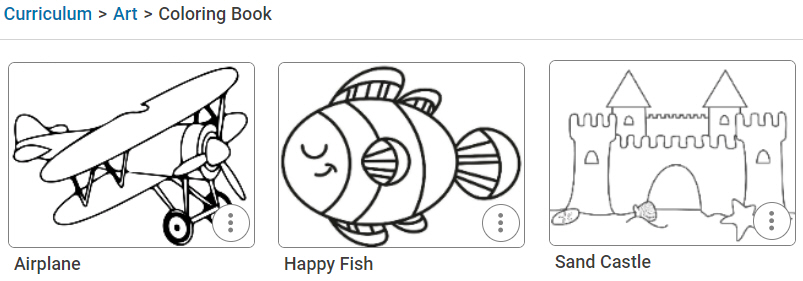
Wixie includes a folder of simple coloring pages you can use. Open the Curriculum Activities library, open the Art folder, and open the Coloring Pages folder at your teacher home page to find and assign coloring pages to your preschoolers.
If you assign a coloring page, preschoolers will see it immediately when they log in and can simply select the file to start working. To fill an area with color, preschoolers:
1. select the Paint Bucket tool,
2. select a color,
3. move over the area to fill, and
4. click or touch.
5. repeat.
Click to build math foundations
You can apply this same skill to help students practice and apply counting skills. Search for "count" or "shape" at your Wixie home page to find templates that ask students to fill with color by counting and identifying shapes or by clicking the paintbrush tool.
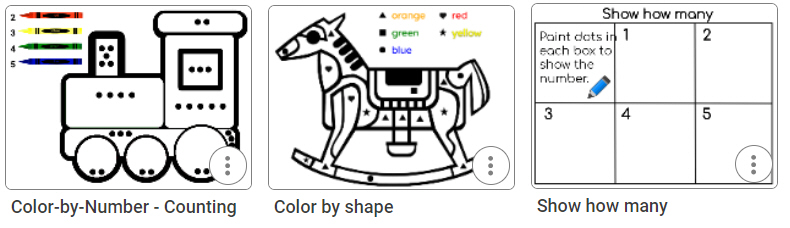
Patterning is a common preschool skill and is an essential foundation for pre-algebra. Students can fill shapes on a template or simply draw their own patterns too.
Click and drag for self-expression
Clicking and dragging requires a good amount of motor coordination, especially if children are using a computer mouse or laptop trackpad. Open-ended drawing and self-expression with a paint brush or spray can are fun for artistic kids. While you will have to adjust the settings the first time, most children love using the symmetry options with the paint brush.

The black sheets and wooden styluses of scratch art are still common road trip entertainment. There is a folder of digital Scratch Art activities with a range of backgrounds like flowers, leaves, and rainbow colors. To find and assign, search "scratch" or browse Curriculum Activities > Art > Scratch Art.
Click and drag to build, discover, and play
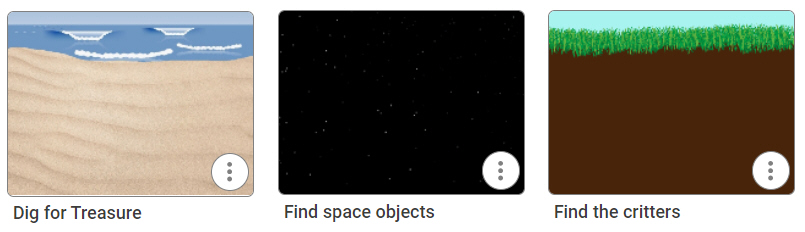
Some students are intimidated by a blank screen. For these learners, use a template that asks students to use the Eraser tool to find hidden objects. Search "hidden" at your Wixie homepage to find and assign templates like these.
Click and drag to count, sort, and build
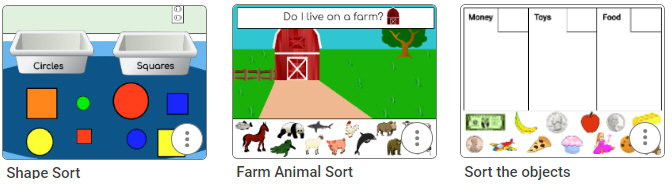
It is easy to transition preschools into math concepts using a simple click-and-drag to build composite shapes, design scenes with a designated count of different objects, and sort by shape.
Click and drag to write words
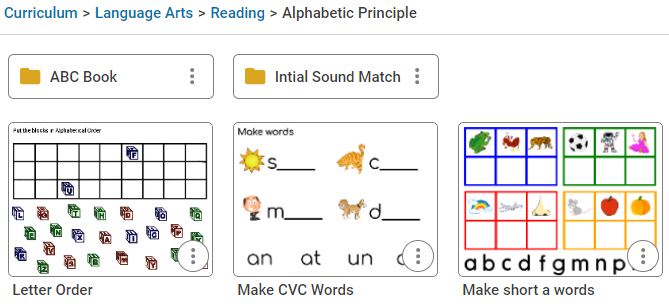
As preschoolers gain familiarity with letters and words, some are ready to build words from virtual manipulatives. Wixie includes a variety of templates that can help you evaluate their understanding of alphabetic principle.
Growing in Wixie
Preschool students can be makers, creators, and writers too! While the first time recording their voice will require assistance with browser permissions, preschoolers can certainly take advantage of multimedia tools... and with heart-warming results.
Foster social-emotional skills in your classroom by having students create digital greetings. Use the Image button and Camera option to capture a student's face or their drawing and have them record a greeting with the microphone tool. Simply use Family Sharing to share creations with family.
Students can also use the microphone to describe their work or tell stories about it!
If you are ready for a challenge and have assistance, you can even try recreating your favorite pattern story and turn your young learners into authors. There are templates for common pattern stories, like Good Night Moon and Brown Bear, Brown Bear, What Do You See? to help you get started.
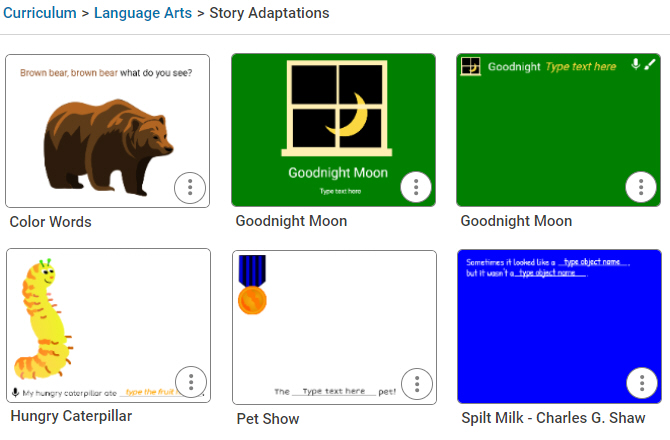
Have each student complete a page with help and then combine the individual pages into a class book you can share online, export as a PDF or even as a Video for parents to take a look and listen.
Preschool resources
Wixie 101 includes a folder of resources to support your preschool learners.
Your preschoolers are going to love creating in Wixie!
 Effective Integration
 Instructional Design
 Learning Strategies
 Literacy
 Month-by-Month
 Product Ideas
 STEM/STEAM
 Share and Showcase
 Updates
 User Management