
Wixie fall 2023 update
We created Wixie so that students could create to learn, not just consume information. Wixie doesn’t exist in a vacuum and works best when it works for teachers too, so we have been listening to your requests and working on adding the tools and features you and your students need. Here are a few of the latest changes.
New project options
To help your students begin using Wixie without the need for you to put together an assignment, we’ve added project options to the top of the Wixie dashboard. Now, instead of having to know how, and what, to do, buttons provide specific ideas to help you get started.
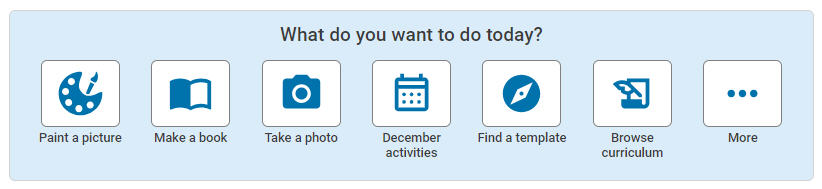
To turn it off, go to your settings and select My Classes. Select the Settings button for a class and choose the No radio button to turn off New Project Prompts for those students.

New paint brush styles
One of our developer's children said Wixie needed more paint brush options. So Jess got to work designing three new brush styles.
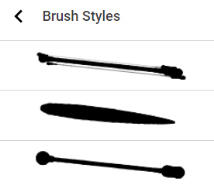
We think the second brush stroke is great for sketches and the third for lettering.

We can't wait to see how your students apply these new brush styles!
New brightness filter
Wixie has a new brightness filter, empowering users to refine and customize their images even further.
You can use this to adjust the colors of images (and talkies!), which is especially useful for students trying to make images look more like themselves, friends, and family.
Look at how different filter settings change a few of the student talkies in Wixie.
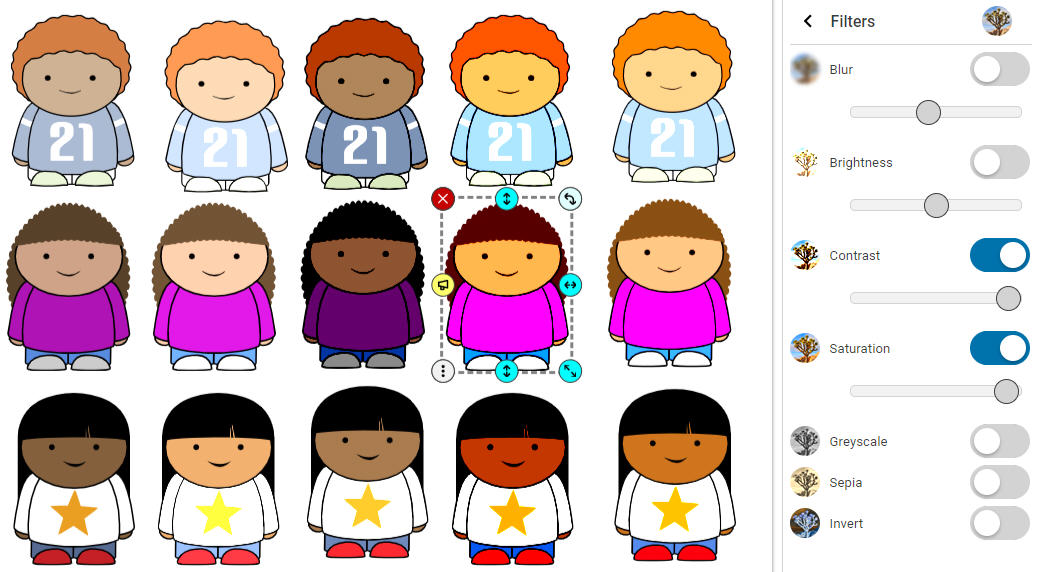
To find these settings, select a talkie, select the arrow next to Looks, then the arrow next to Filter!
And if you can’t find the perfect talkie, you can use the face talkies to create your own.
Try these new filters and adjustments on some of the million or more images available with the new Pixabay integration.
Export the current page as an image
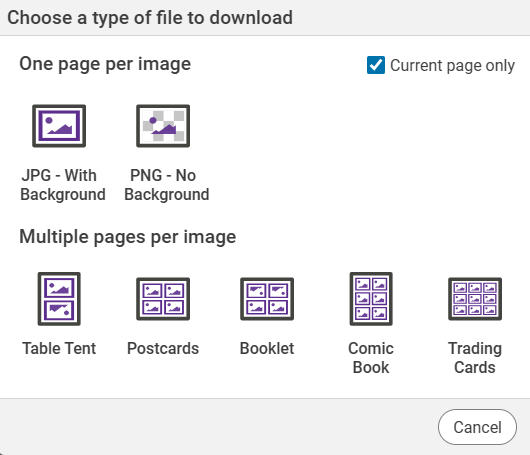
You can now download an image of a single page in a project.
Move to the page you want to download before you go to the File menu and choose Download. Then, choose the Image button and select the check box for Current page only before you choose JPG or PNG.
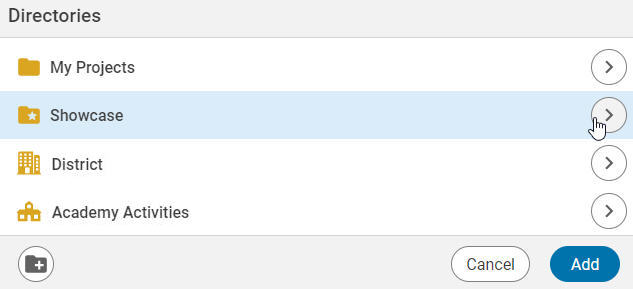
Add teacher and class projects to your Showcase
Teachers can now elevate their Wixie experience by seamlessly integrating their own projects into their Showcase. This will empower teachers to more easily showcase and share high-quality examples they have created, as well as class books they have compiled using the Project Wizard.
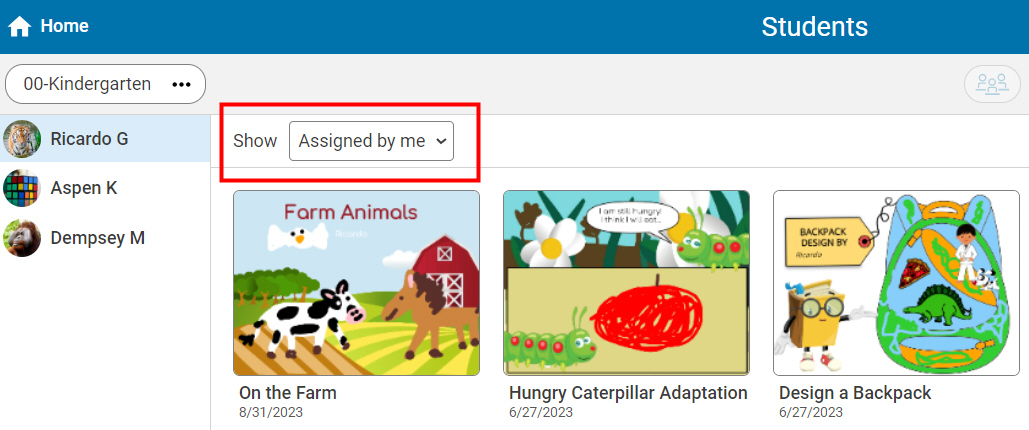
Assigned by Me filter
You can now take advantage of an Assigned by Me option in the project filter pull-down on the Students page to more easily locate student work. This is especially useful at sites where students have multiple subject-area teachers who all use Wixie.
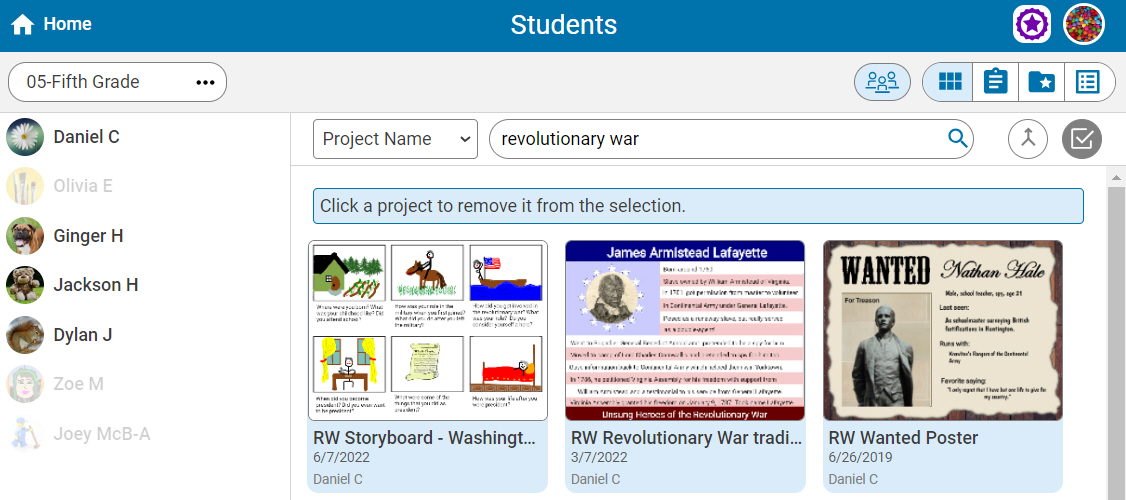
Hints in the interface
To continue our commitment to user-friendly experiences, we've added helpful hints within the interface. For instance, when utilizing the Project Wizard to combine student projects, you'll receive step-by-step instructions on removing specific projects from your selected list and streamlining your workflow.
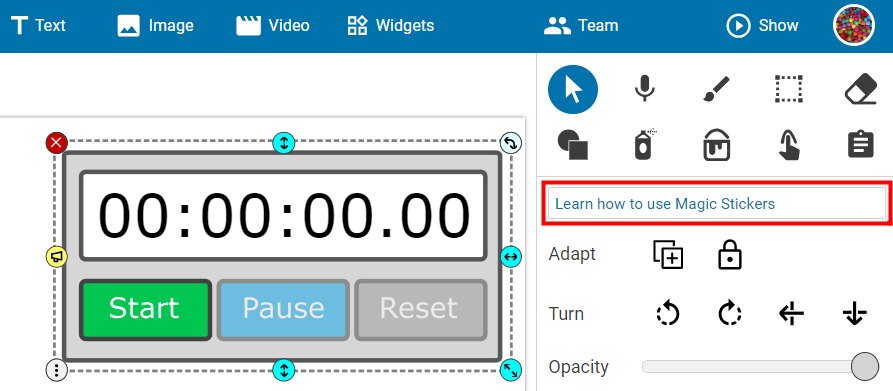
Additionally, when adding a Magic Sticker to an activity or template, a hint on the options panel links to information helping you make the most of this feature.
Wixie Certified Educator badge
If you are a Wixie Certified Educator, you will now see a badge indicating your status next to your profile icon.

If you aren’t yet a Certified Educator, use this template to submit your application.
Submit a Help Request
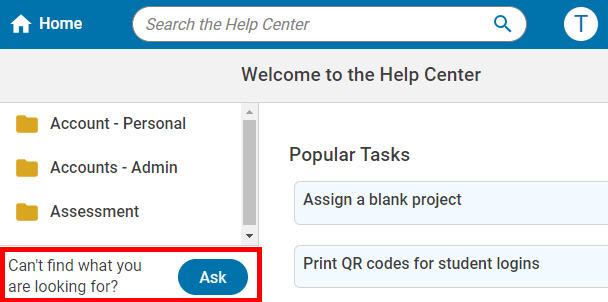
We do our best to make the Help Center easy to find and use. But if you can't find the answer to your question or issue, you can now use the Ask button in the lower left of the Help Center page to submit a help request.
Stay tuned for more updates and innovations from Wixie as it remains committed to empowering educators and fostering creative learning in the classroom.
 Effective Integration
 Instructional Design
 Learning Strategies
 Literacy
 Month-by-Month
 Product Ideas
 STEM/STEAM
 Share and Showcase
 Updates
 User Management