
Introducing Magic Stickers
The latest update to Wixie introduced Magic Stickers. Magic Stickers are images that can change the way they look, such as dice you can roll, clocks that change their time, and more.
Magic stickers can change the way they look in different ways - the change can happen the first time the sticker is shown, when the sticker is clicked, or both. How it works depends on the sticker. For example:
- Dice will display a new number each time that is “rolled” or clicked.
- A clock face will show a new time when the page is loaded.
- A random number will show the first time a page is loaded, but then stay the same.
Also, some Magic Stickers save their state. For example, a sticker that displays a random two digit number will pick a random number the first time it is shown, and then always show that same number.
Say you are creating a template for students to practice adding two digit numbers. If you want to have six problems to solve, you could place 12 numbers on the page and every student would do the same math problems. With Magic Stickers, you can put the same sticker on the page twelve times. When each student opens the template, the stickers will display twelve random numbers. Every student will have a unique set of problems to solve.
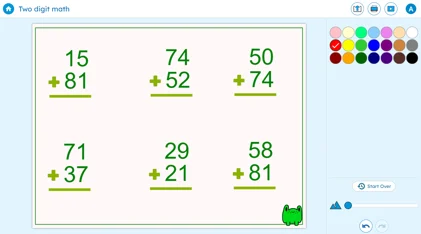
Magic Stickers that save their state only save when students are working on the template. So while teachers are building the templates, the stickers will change, but their states will not be saved.
Adding Magic Stickers
Magic Stickers can be found using the Widgets button on the toolbar. Use the Image button in Wixie and then select Magic Stickers in the dialog.
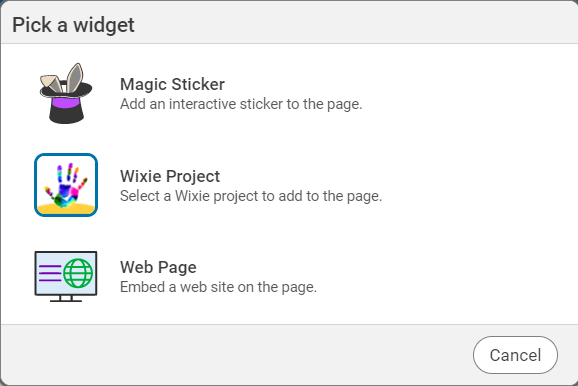
You will see all of the folders of Magic Stickers.
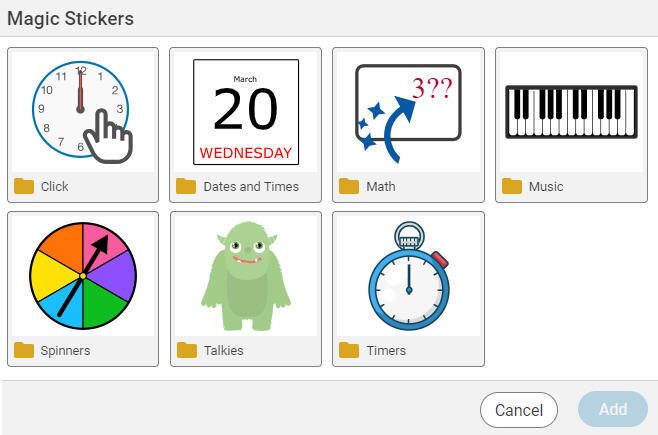
Browse the folders to find a Magic Sticker for your project.
Magic Stickers need to be locked or protected to activate. If they are not, they will act just like every other sticker.
To make a Magic Stickers active, select the sticker, go to the Edit menu, choose Properties, and select either Locked or Protected. Locked objects will activate and cannot be edited, this is the most common setting you will use. Protected stickers will activate, but can still be dragged around the page. This is useful if you are creating a template that involves sorting random numbers.
Templates using Magic Stickers
You can find templates that already include Magic Stickers in the Wixie Templates library and we will continue adding more.
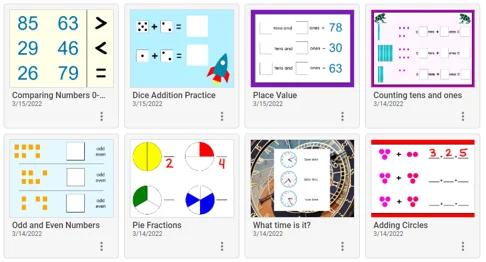
Here are eight examples to inspire your own designs:
 Effective Integration
 Instructional Design
 Learning Strategies
 Literacy
 Month-by-Month
 Product Ideas
 STEM/STEAM
 Share and Showcase
 Updates
 User Management