
Using Wixie for Flip-style video response activities
Wixie is an engaging way for students to explore curriculum and demonstrate learning using text, images, voice, and video and for teachers to manage assignments, provide feedback, and evaluate student learning.
While not designed as a video response tool, you can use Wixie's student and teacher tools to engage learners and honor their voice through video response activities.
Video Response Activity Library
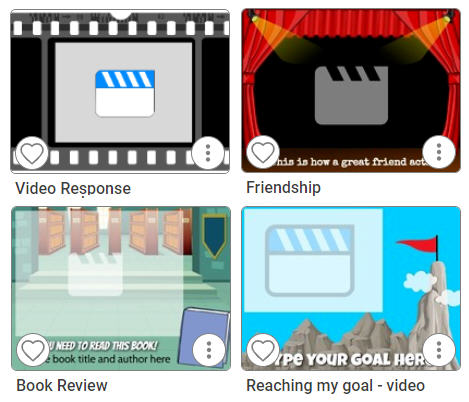
Wixie includes a library of activities you can assign immediately or modify to meet your classroom goals, including a range of video response templates. For example, a video response is a great way to have students:
Wixie's popular Month-by-Month folders all have timely video response activities too. As you work with Wixie throughout the year, you can take advantage of video activities connected to gratitude (November), limericks (March), kindness (February) and much more.
How a video response process might look in Wixie
1. Start with a video template and edit the instructions to match your goals and needs.
2. Assign the template to each student. (You can also create your own template by adding a simple text prompt on the page for students to reflect on and record a response.)
3. Use the Project Wizard to quickly select all student responses and collect them into a book with 4 or 6 videos per page.
4. Post to your LMS or share the collected responses on an interactive board, like the ones from our partner BenQ, to facilitate additional reflection, meaningful discussion and lively debate.
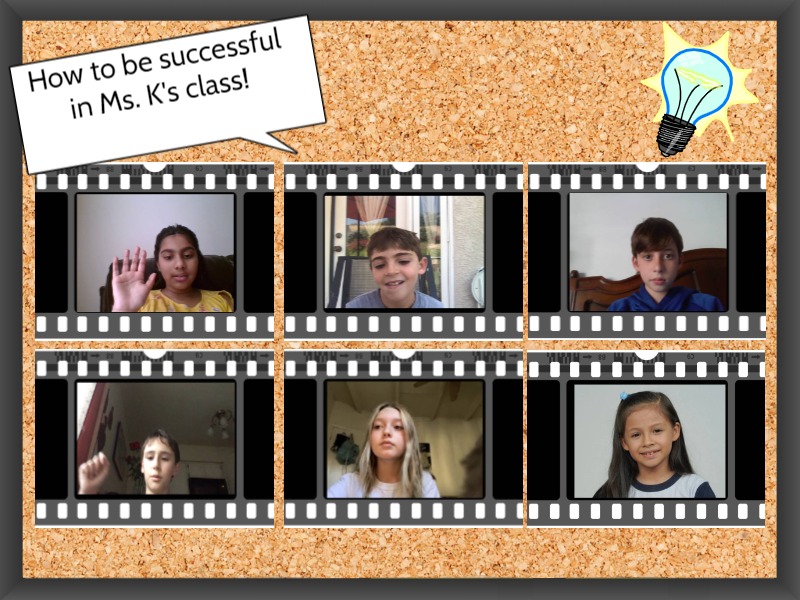
You can also take advantage of Wixie’s Team tool to have all students record a response in a single file. For example, if your students enjoy recording a video response to a prompt or text, add all students in your class to the Video Response file.
Use your Wixie Showcase like a Flip Mixtape
Flip Mixtapes let you collect videos across assignments and then share the group. In Wixie, to make a Mixtape-style collection in Wixie, simply add the student project to your Showcase.
Then, share your Showcase (or the topic-specific folder where you placed the videos) at:
- family night
- student conferences
- during a presentation
- a celebration of learning.
Getting Started
If your students enjoy adding stickers to videos, they can achieve similar results by adding Stickers to their work, even over video. For example, the Introducing Me template is already connected to the Photobooth library, so as soon as students select the Image button, photobooth-style images appear. They can always select Stickers and other options, as well as search, to find more images they want to add.
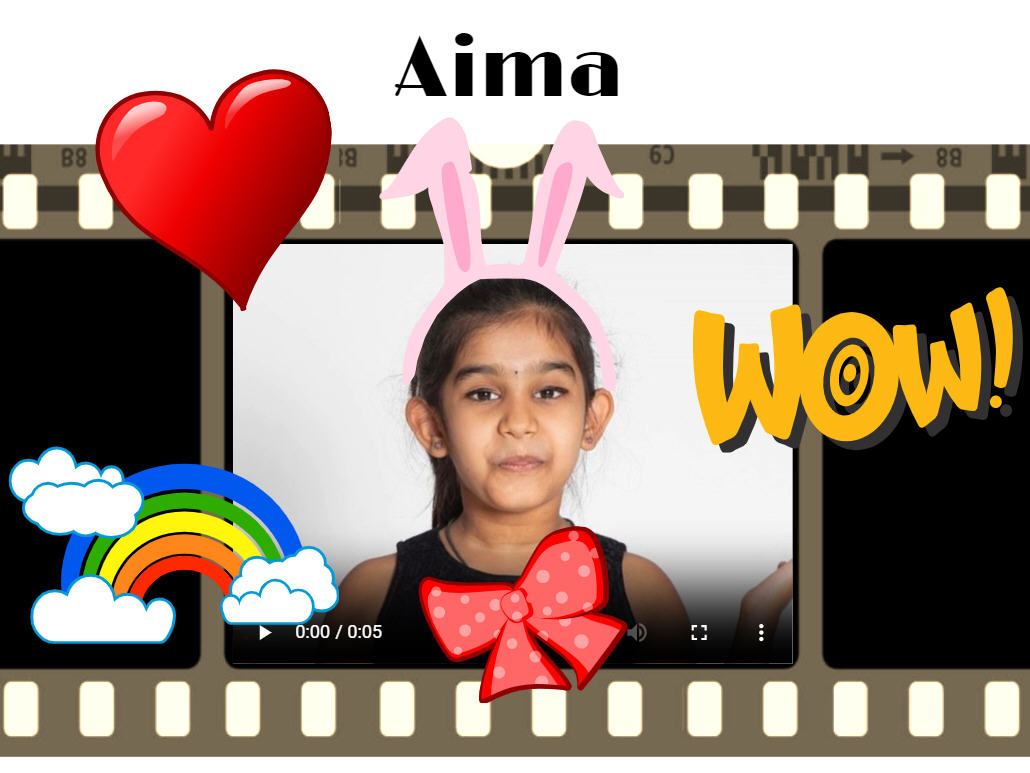
Note: Be sure to remind students to keep the lower left corner of the video clear, so that the Play button can be used on mobile devices.
 Effective Integration
 Instructional Design
 Learning Strategies
 Literacy
 Month-by-Month
 Product Ideas
 STEM/STEAM
 Share and Showcase
 Updates
 User Management