
Teachers can assign a file from the Curriculum and Template libraries as an activity for their students.
Click the main menu and choose Library.
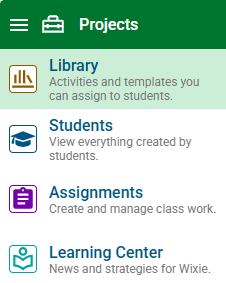
Select the Curriculum or Design Templates libraries from the list.

Browse the folders to find the activity you want to assign.
Click the menu button for a project.
Click the menu button for a project.
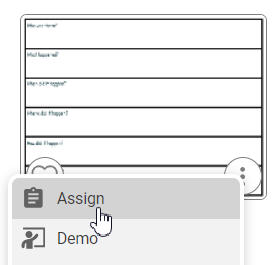
Click the Assign button.
You will see a dialog that will allow you to assign the activity to a class or individual students.
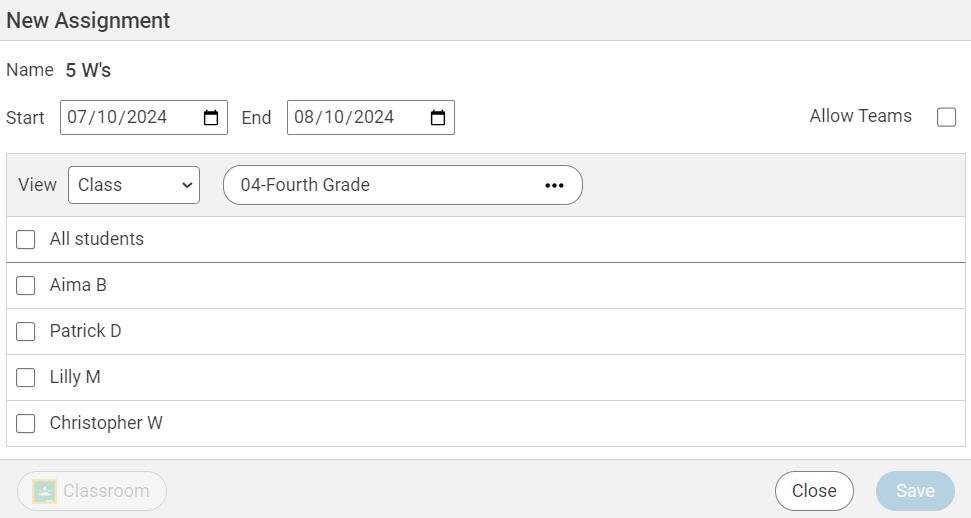
You can keep the name of the template for the assignment name, or change the name to something unique for your classes.
Click the Start Date to select the first day you want students to see the activity in Wixie.
Click the End Date to select the last day you want students to see the activity in Wixie.
Use the Class button to select a class of students.
If you want every student in the class to see the activity, click the All Students check box.

If you only want individual students to see the activity, click the check box for each student.
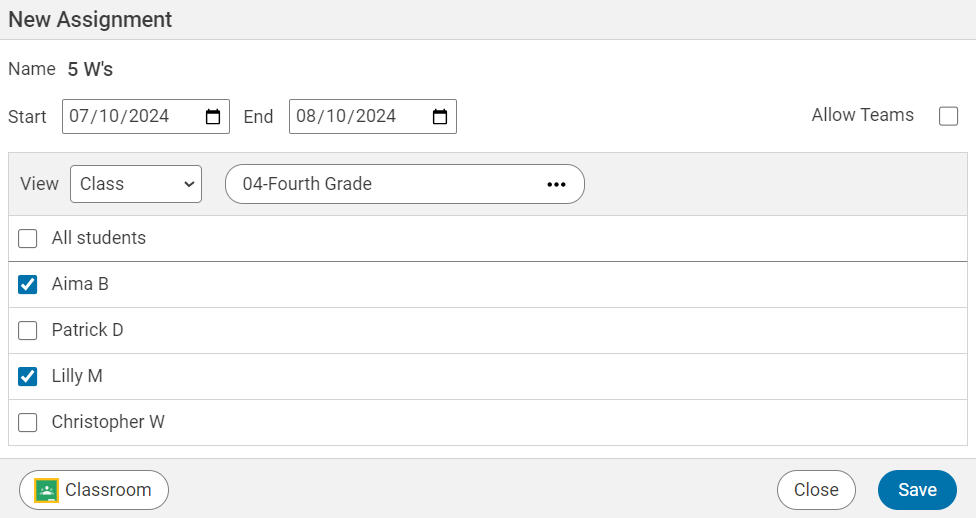
To assign the same activity to students in another class, select another class using the Class but.

When you are finished choosing students, click the Save button.

The students you selected will see the activity on the dates you specified.