
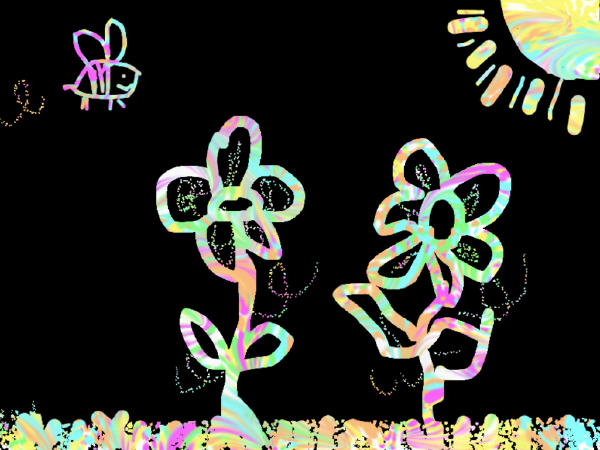
You can make a scratch-art template so that a user can “scratch” a picture into a solid color to create a design. These work like the scratch-art toys used on car trips and often found in gift bags today.
Scratch art templates simply take advantage of the difference between the background, paint, and object layers.
The general process for creating a scratch art template is to design the underlayer and then send all of the items on the page to the background layer. Then, use the paint can to fill the paint layer with a color or pattern.
You can try out different examples in the Scratch Art activities folder.
Process:
To create your own scratch art activity, start a new blank project.

Use the paint tools and image options to design what you want users to see once they scratch the page.
Select the Arrow tool on the tool palette to ensure that nothing on the page is selected. Go to the File menu, click Edit, and choose Send to Background.
This will move anything on the page to the background layer, which exists "behind" or "below" the paint layer.
Next, use the paint can tool to fill the paint layer with a solid color, such as black, like you would find on a typical scratch art toy.
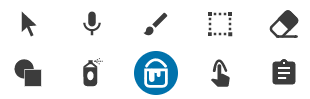
If you want to test if your scratch art works, select the Eraser tool and drag it across the page. Simply choose Undo when you are finished.

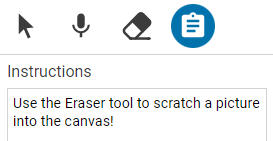
Select the instructions tool (clipboard) and type directions so that the user knows to use the Eraser tool to scratch an image onto the page.

Go to the File menu and choose Project Settings to simplify what the user sees and make creating scratch art easier.
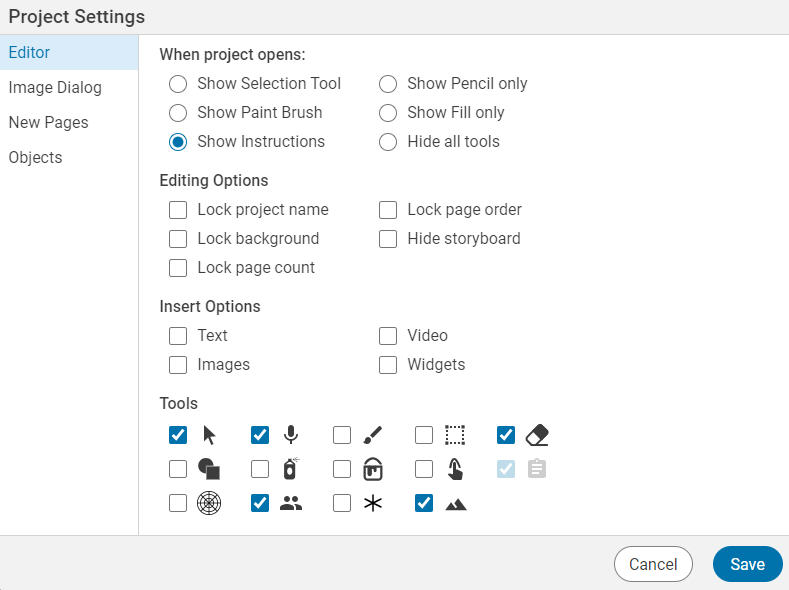
Note: You might want to include the microphone to have students record a message or reflection, along with the zoom options for adding more detail.
Go to the File menu and choose Assign to assign your scratch art activity to students!
Bonus:
You can use this same process to create similar that have additional visuals on the paint layer. For example: