
Use backgrounds in Wixie to give context to student projects
One of the more subtle features in Wixie is the difference between the background, paint, and objects layer. Since the background layer in Wixie exists behind everything, students can quickly and easily add text, stickers, and even painted artwork above it without “damaging” the image.
You can use the backgrounds to give context to performance tasks that ask students to:
- Show the unique plants and animals in a habitat
- Share a first-person account about a unique culture or geography
- Employ historical empathy as they send themselves back in time
- Trace the routes of explorers or represent animal migrations
- Write and illustrate original stories and letters
Add a background to a Wixie page
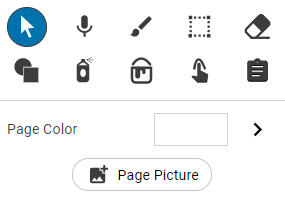
To add an image to the background, select the Page Picture button below the tools to the right of your Wixie canvas.
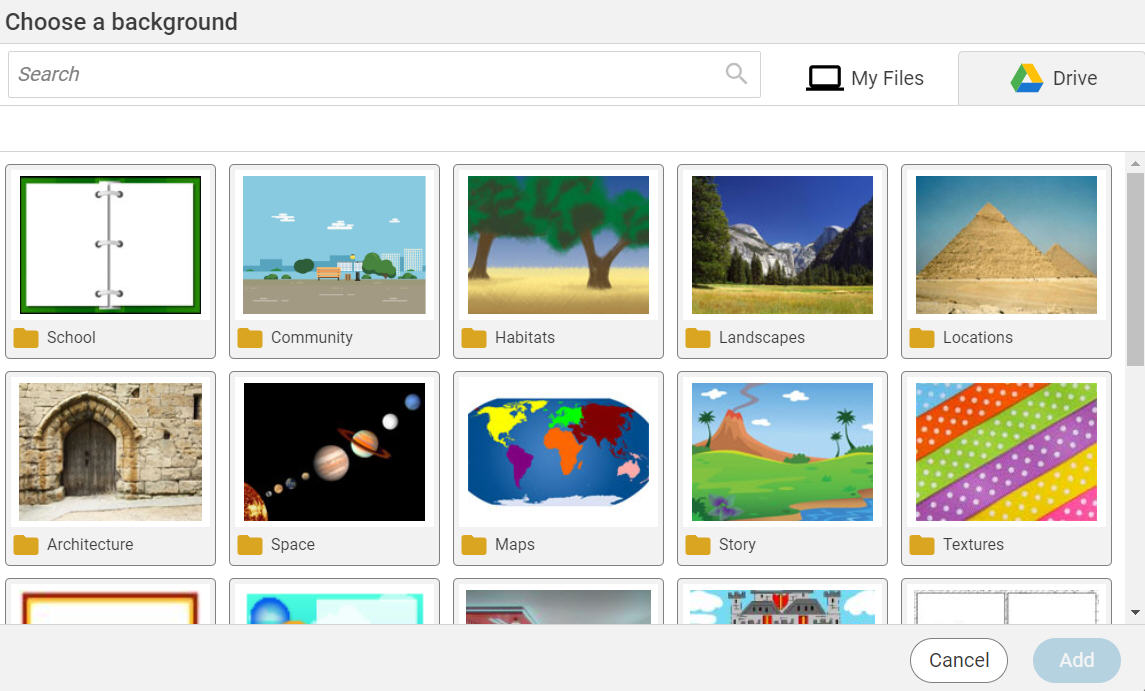
The Choose a Background dialog includes folders for community, habitats, locations, story scenes, writing, and more.
Use the search field at the top or browse the folders to find the image you want to use. You can also use the Computer tab at the top to use an image you have saved on your device or a connected network drive.
Once you select and add the image, it will fill the entire background. When you use the paint tools to illustrate characters and events on the scene, they are painted on a layer above the background, making it easy to erase and move.
If students have used the paint tools to create their own artwork, you can use it as a background by going to the Edit menu and choosing Send to Background.
Teachers can use this same feature to send charts and grids to the background of formative assessments and organizer templates. Remember, if you send an image to the background it cannot be painted on, so if students try to fill a square they see, the paint will fill and cover the entire background.
Use background to give context to performance tasks
Inspire narrative writing
Staring at a blank page, whether it is a sheet of paper or screen on the computer, doesn't always trigger imagination and help students get started writing.
To support your emerging writers and spark their ideas, add different backgrounds to a multi-page Wixie project and assign it to your students. You can find existing story starters in the Curriculum Activities library by browsing Language Arts > Writing > Story Starters.
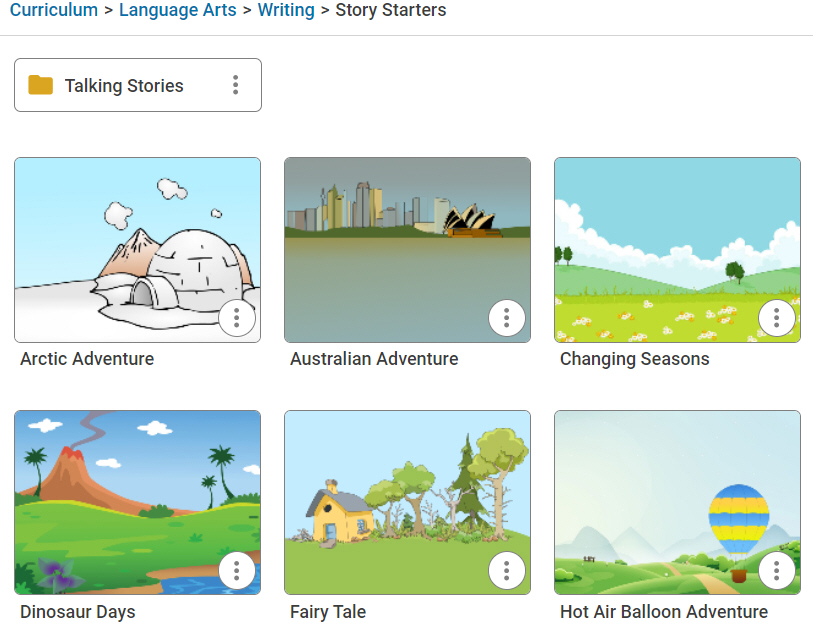
Use these to inspire you as you create your own story starters based on content you are exploring in your classroom. For example, you could add photos you took during a recent field trip and ask students to retell events using text, artwork, and voice recording.
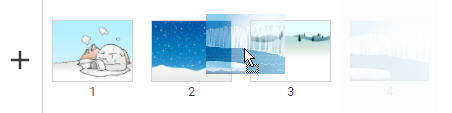
If you have students who feel limited by the existing images in a story starter, empower them to rearrange scenes using the storyboard.
Students can also use backgrounds in the Writing and Stationery categories to inspire and enhance note-taking, letter-writing, menus, and invitations.
Travel to exotic locations and back in time
Use the backgrounds for projects that ask students to capture their image or illustrate themselves as narrators or tour guides at famous locations around the world or in different periods in history.
As they work to write in first person, they better internalize information from their notes and research rather than simply copying and pasting without thinking.
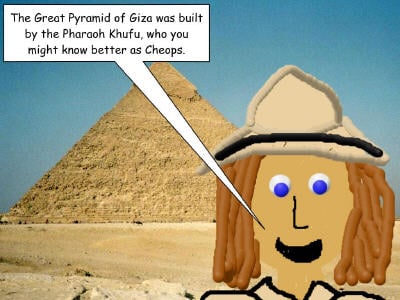
Students can also easily add themselves to stories and even interviews with animals, artifacts, and historical figures.
Make formative assessments more obviously formative
Backgrounds make it easy for students to erase and edit their work. This sets a tone for learning where students understand learning is a process and they are expected to change their minds as they learn more and then edit their work.
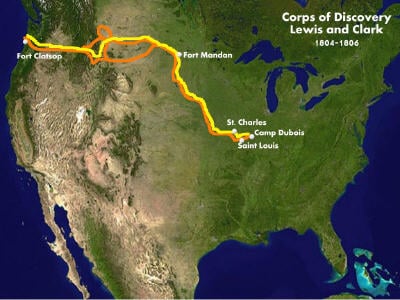
While they can always trace the routes of explorers on paper, using the backgrounds takes the pressure off your perfectionists to get it exactly right the first time. It also sets the tone that students can experiment and make more than one attempt before achieving understanding.
You can use backgrounds to give a formative assessment that asks students to label the different types of single-celled organisms using an image you have captured using a USB microscope. And, you can do this without using ink toner or collecting papers!
Understanding how backgrounds exist behind everything else in Wixie can help you create more dynamic and engaging instructional activities and assist students in more effectively communicating and sharing their learning.
 Effective Integration
 Instructional Design
 Learning Strategies
 Literacy
 Month-by-Month
 Product Ideas
 STEM/STEAM
 Share and Showcase
 Updates
 User Management