
You can record a video to put on a page.
Click the Video button on the toolbar.

You will see the video dialog.
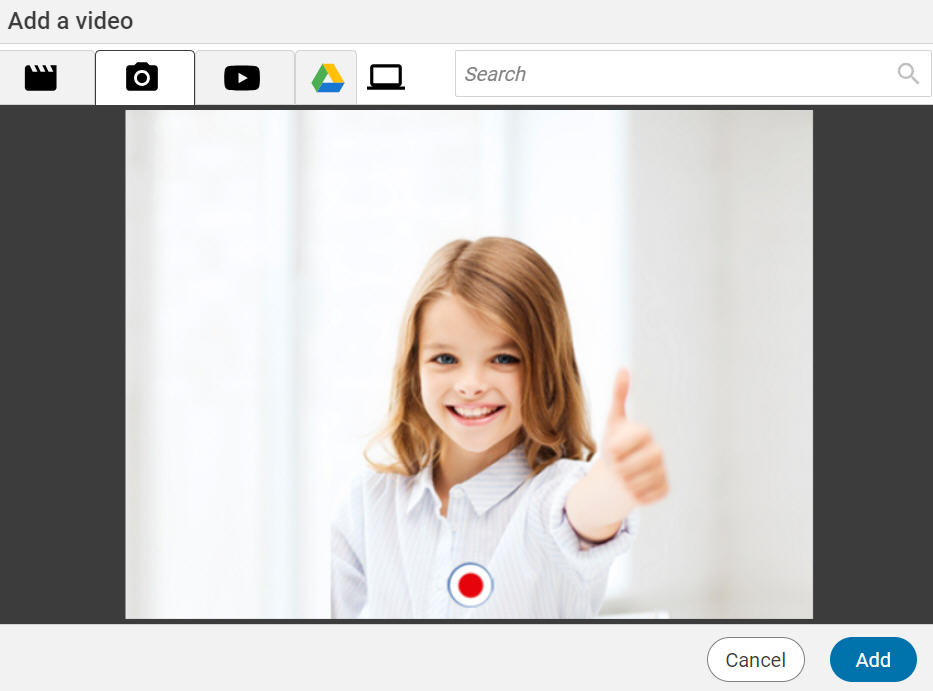
Click the Record button to start recording.
Click the Stop button when you are finished.
Click the Play button to preview the video.

Click the Record button if you want to re-record the video.
Click the Add button when you are ready to add the video to the page.
You will see the video dialog.
Click the Stop button when you are finished.
Click the Play button to preview the video.
Click the Record button if you want to re-record the video.
Click the Add button when you are ready to add the video to the page.
The video will be added to the page.

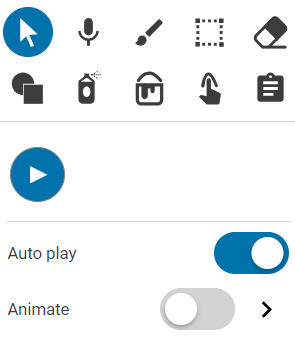
To preview the video while you are editing, select the video and click the Play button the options panel.
The video will also have a play button on it when you click the Show button to present your project.
If you want the video to play automatically when you present, turn the Auto play slider to the on position.
There are some restrictions on the length and contents of videos.
- The maximum length is 10 minutes.
- YouTube videos will display as a still image when the project is exported as a video.
- Uploaded videos will display as a still image when the project is exported as a video.