
You can add student work to an assignment. This is helpful if students started working from a blank project or a template that you did not assign.
Start by locating the work you want to add.
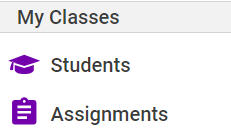
Select the Students button at your Wixie dashboard.
Use the Class button to choose the class whose work you want to add.
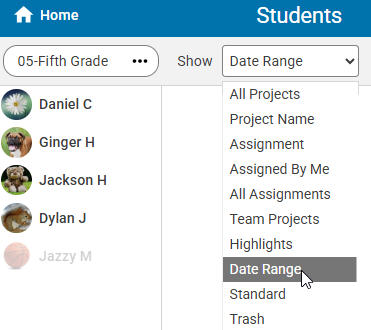
Use the Date pull-down menu to filter for the specific student work you want to add to the assignment.
To see the work of all students, select the Entire Class button.

Click the Select Projects button.

All projects that match your filter will be selected.
Click to deselect any projects you do not want to include.
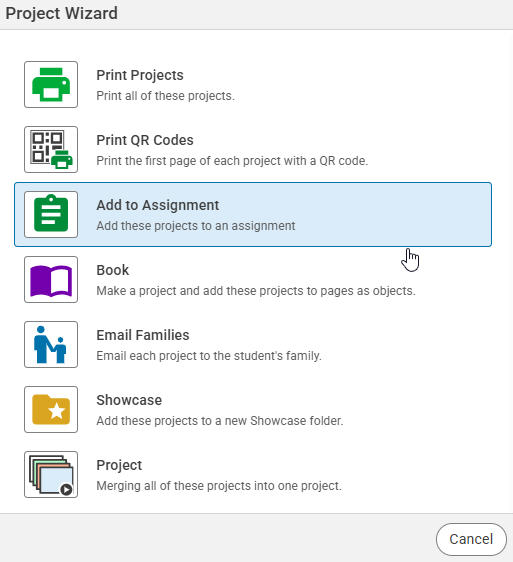
Select the Project Wizard button.

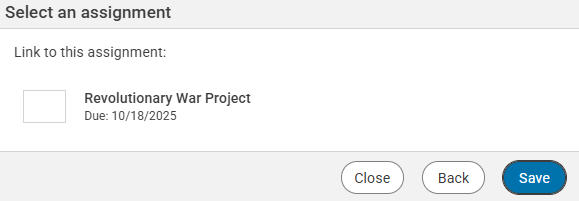
At the Project Wizard dialog, select the Add to Assignment option.
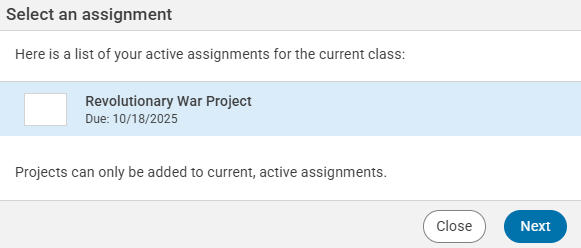
You will see a confirmation dialog. Click the Save button.
Now you can choose the Assignments button to view all student work on an assignment, even if students started work on their own.