
You can add a student project to your school's showcase to be able to easily share it with other teachers or the community.
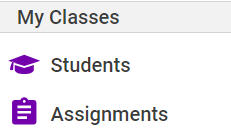
Click the Students button to go to your Students page.


On your Students page, locate the project you want to share.
Click the project.
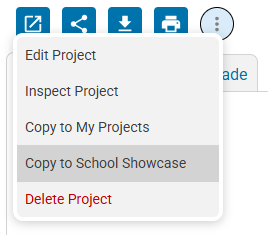
In the project details view, click the More Options button and click Copy to School Showcase.
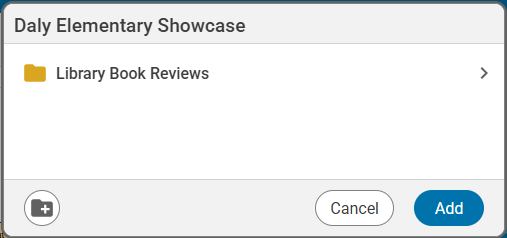
You will see the Showcase dialog.
Click a folder to open it, or click the New Folder button to create a new folder for the project.
Click the Add button to copy the project into your school's showcase.
To see the showcase, click the Home button to return to your home page.
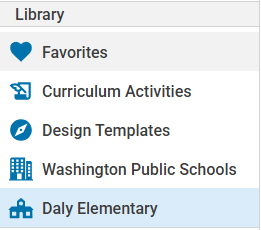
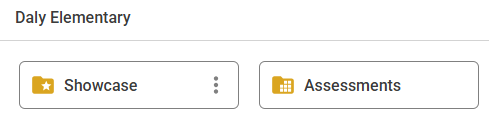
In the Library, click your school folder.
You will see the Showcase folder.
Click the folder to open it.
You will see the folders in your school's showcase. Open the folder where you saved the project.
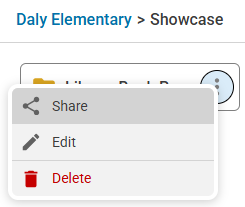
To share the Showcase, click the menu button for the folder and choose Share.
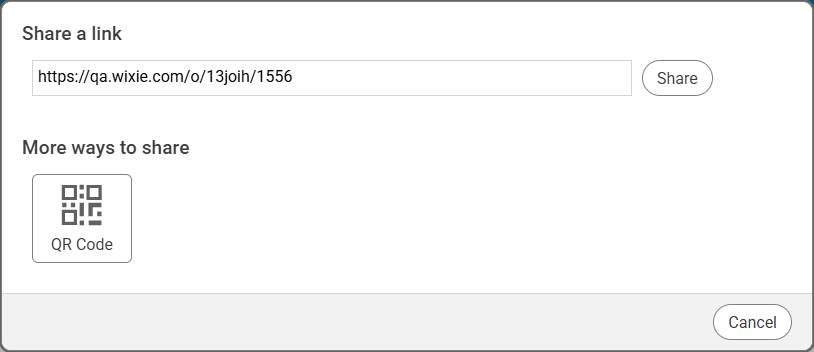
You will see the Share dialog.
Copy the link to share a web page with all of the showcase projects.
Click the QR code button to print a sheet of paper with thumbnails of some of the projects and a QR code that you can hang up in your school to let people see what your students have created.