
You can use the new school year wizard to help update student accounts for the new school year.
The new school year wizard can:



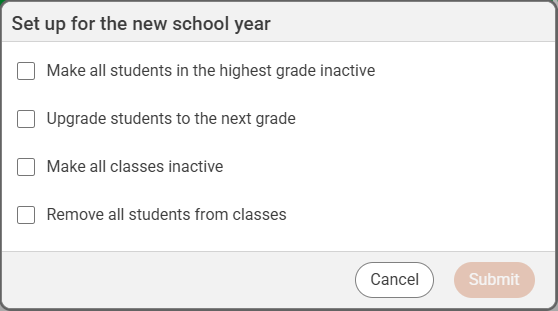
- delete the student accounts in the current highest grade,
- upgrade all student accounts to the next grade,
- delete all current classes or remove students from the classes.
To use the new school year wizard you must be logged in to an Admin user account.
Click the Admin button on the toolbar.
You will see the Administrator view.
Click the Accounts button on the toolbar.
You will see the Accounts page.
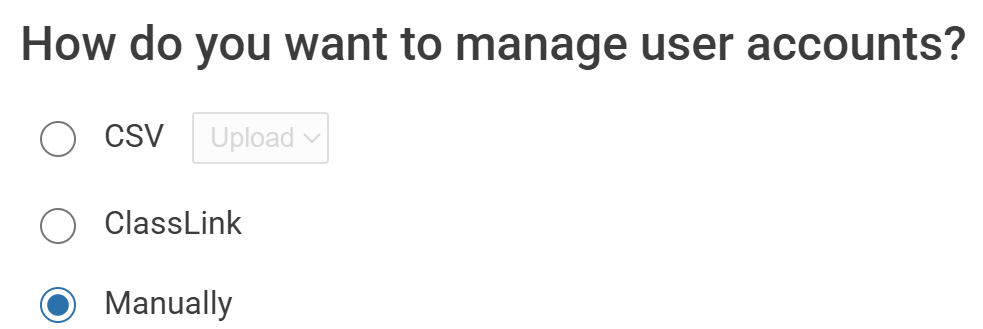
At the Start view, you must be set to manage user account Manually.
If this is not your current setting, change the setting.
Click the Students view button.
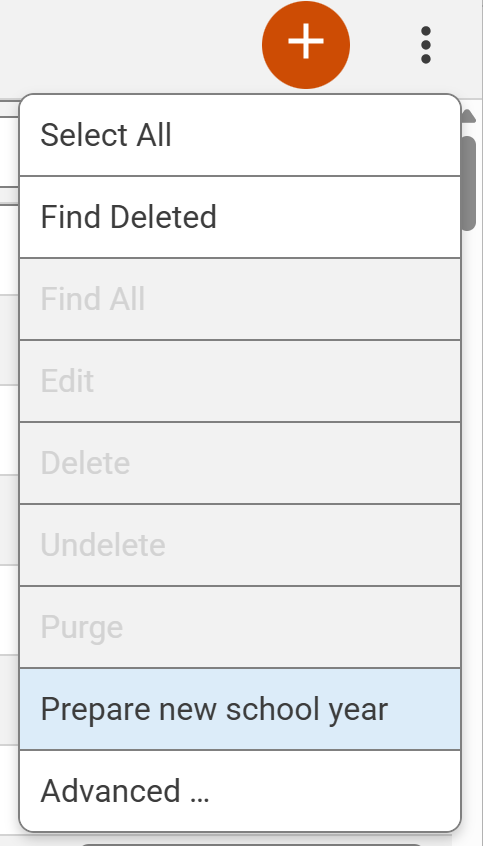
Click the More button and select Prepare new school year.
You will see the new school year wizard dialog.
Select the options you want to do. For editing class assignments, you can only select one of Delete all classes, or Remove all students from classes.
Click the Submit button when you have made your selections.
You will see a confirmation dialog with your choices. These changes cannot be easily undone, so only click the Do It button when you know you are ready to commit the changes.