
You can print pages that include a picture of each student's work along with QR code that links to it.
This makes it easy to share your class's work at a gallery walk, museum project, or family night.
Find the assignment, or collection of work on the Students page you want to share.
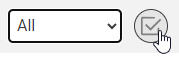
Click the Select All button to select all student work.
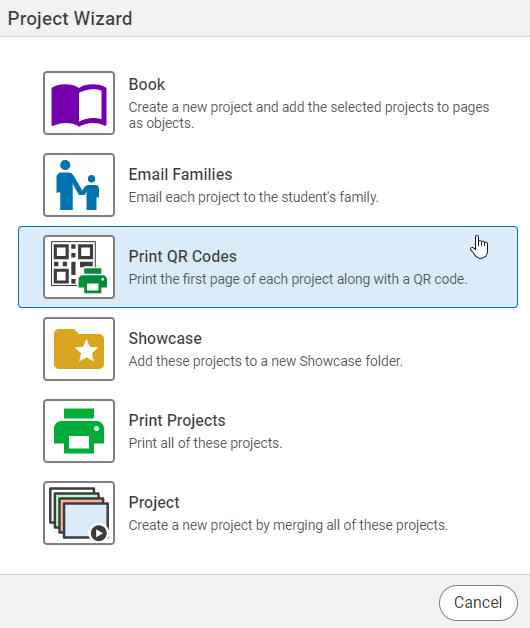
Click the Project Wizard button.

Click the Print QR Code option.
Use the print options to get the pages looking just the way you want them.
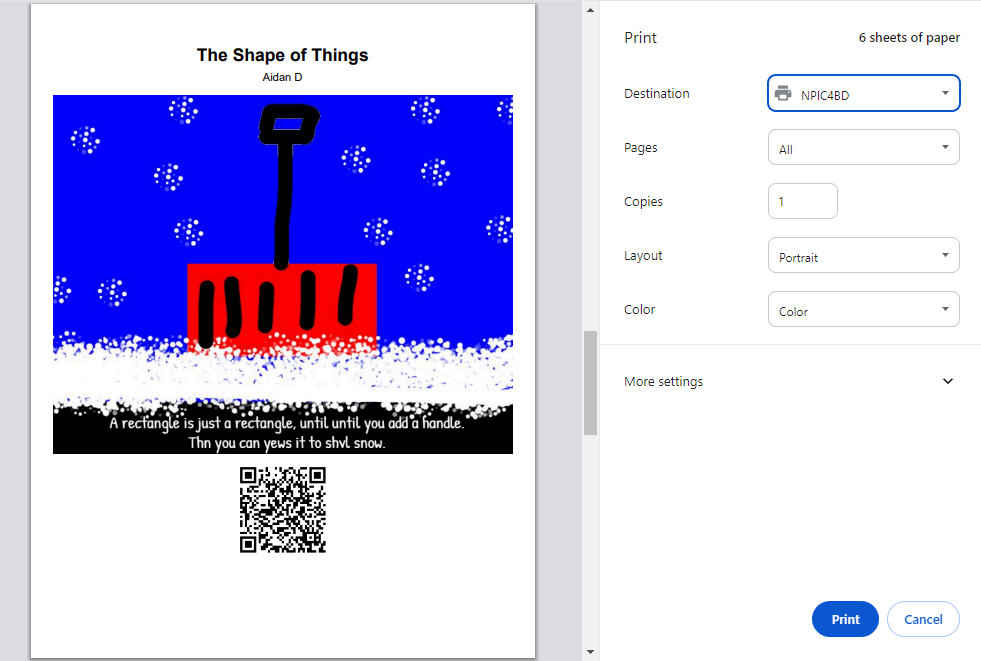
Click the Print button to print a page for each project that includes and image and QR code that links to it.