
You can create a choice board students can use to select the Wixie activity they want to work on.
Start by locating the activities you want to add to the choice board. You will need to download an image for each one and capture/record the URL to the activity in a document on your device.
To download an image for the activity, open the activity and move to the page you want to show.
Go to the File menu and choose Download.
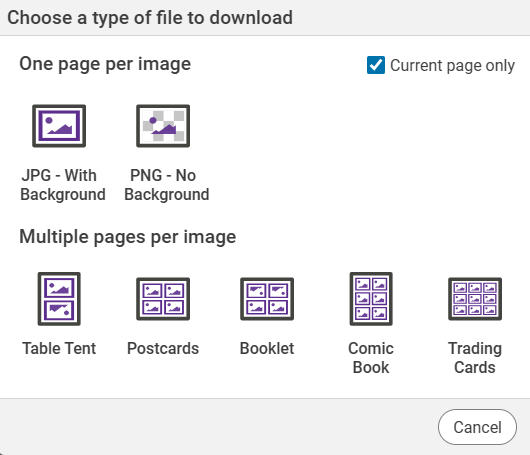
Select the check box for "Current page only" and choose the JPG option.
To find the URLs for the activities you want to include, simply open each activity and copy the URL in the browser field at the top. Paste into a document you can copy from later.
Use the Image button to add the screenshots for each activity to the page. If you want a label as well, use the Text button to add a field and name the activity.
Next, you need to link the image or text to the activity.
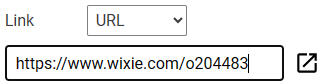
Select the image (or text label) and paste the URL for the activity in the URL field that shows on the options panel.
Repeat this process to link all images and text labels on your choice board.
When the choice board is complete, select the Arrow tool on the tool palette.
Hold the Shift key and click on each object to select all of the objects on the page.
Go to the File menu, choose Edit, and select Properties. At the Properties dialog, and select the Lock check box.
This will ensure that when students choose a hyperlink it will open automatically in a new tab and they can simply begin using Wixie to start the project in their account.
Copy the URL to the choice board from your browser's address bar.
Paste it into an assignment in your Learning Management System. When students choose the activity they want to use, they will be prompted to log in to Wixie to begin working.
Once they start an activity you will be able to view their progress using the Students button at your Wixie dashboard.