
You can add stickers and backgrounds from the Image library to create animations.
Start a new project or add a new page.
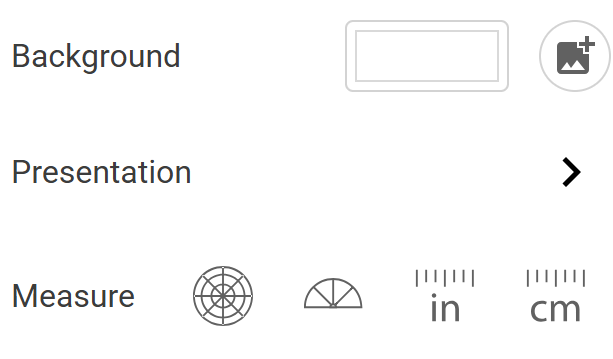
To add a background picture behind the animation, select the Page Picture button on the options panel.
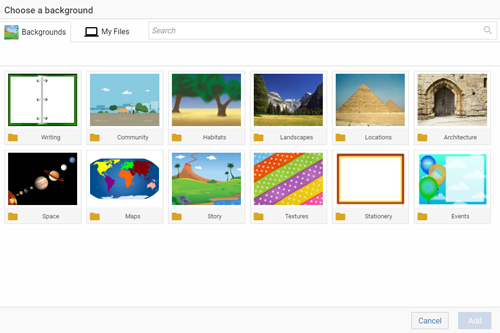
At the Backgrounds dialog, select the background you want to use and click the Add button.
Click the Image button.

At the Image dialog, browse the folders or use the search field to find a picture of the object you want to animate.
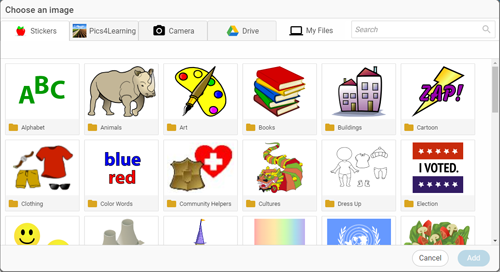
Select the picture and click the Add button.
Click the page away from the image.
Go to the Edit menu and select Duplicate. This will make a copy of the page.
Click and drag the sticker to move it a little.
Go to the Edit menu and select Duplicate again.
Click and drag the sticker to move it a little more.
Repeat this process until your animation is complete.
1. Duplicate page,
2. Drag and move sticker.
2. Drag and move sticker.
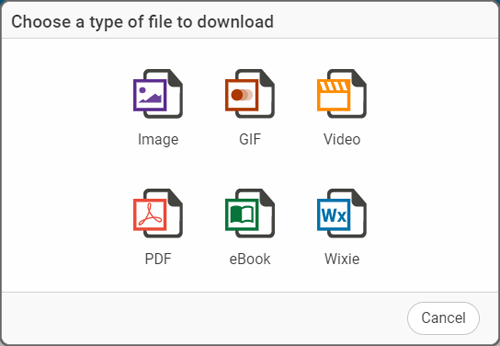
When you are finished, go to the File Menu and choose Download.
Select the GIF option.
You will see a preview of your animation in the export dialog.
Choose a size and timing for your animation.
Click the Export button.
Open your file to see it animate.