
You can create their own rubrics for student projects.
Click the More button in the new project list.

You will see a dialog of options.

Click the Rubric button.
Wixie's rubric tool will open to a blank row of four columns where you can start adding criteria to levels of a rubric.
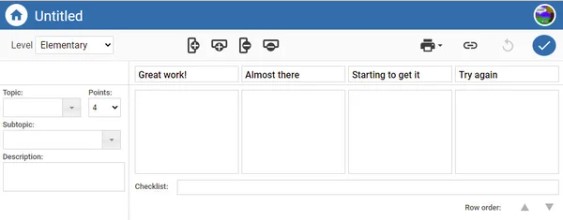
Use the pull-down menus on the left to choose components for your rubric and assessment criteria will be automatically added to each level. Then, simply edit the text to customize for the needs of your learners.
Use the buttons at the top to add more rows for additional components. Use the Link To button to connect this rubric to a file you have created for a student assignment.
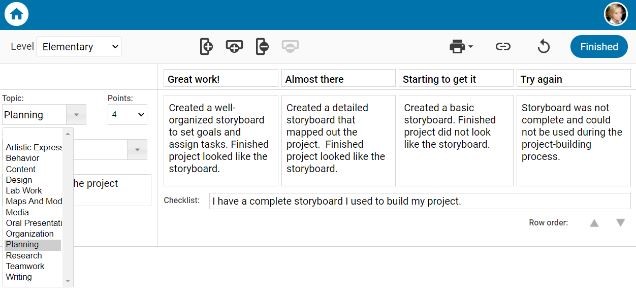
When the rubric is complete, select the Finished button. You can now find your work in the My Assessments folder at your Wixie home page.
If students are working on a project with an attached rubric, they simply go to the File menu and choose Assessment to view the criteria as they work.
Using Wixie’s assessment tools helps provide clear expectations for project work, remove subjectivity from evaluation, and provide students with information to take to be successful.