
Administrators can change settings that will affect the entire organization.
Log in to your Wixie admin account.
Click the Admin button on the toolbar.

You will see the organization administrator view.
Click the Settings button.




Organization Information
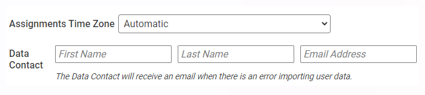
Assignments Time Zone: Adjust the time zone so that assigned projects are due in the time zone you are located. This is only needed if your students access Wixie through a VPN and the time zone of the VPN is different than their physical time zone.
Data Contact: Add the name of the person in your organization who will receive an email when there is an error importing user data.
User Authentication
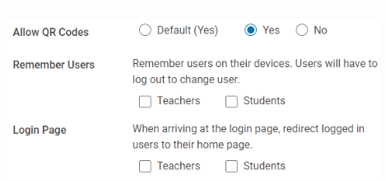
Allow QR Codes: Teachers can print QR codes that students can use to log in to Wixie. Select ‘No’ if you do not want users to have this option.
Remember Users: If your organization is 1:1 you can have Wixie remember users on their devices, making it much easier for users to access Wixie.
Login Page: By default, users visiting the Wixie Login page are logged out of their current session and must log in. This is useful in lab environments where students may not log out when they leave. If your students are on devices with unique logins for each user, you can set this option to redirect users to their Wixie home page rather than logging them out. This helps prevents students from having to log in to Wixie too often.
Sharing Projects
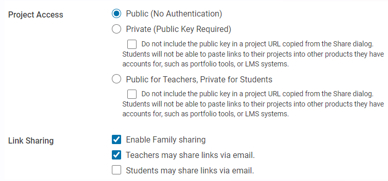
Project Access: There are three security levels to choose from for sharing projects.
Public means anyone will be able to view projects shared by your teachers and students.
If you select Private, a Public Key will be required for anyone to view a teacher or student project if they are not logged into an account that is part of your organization.
By default, the Public Key is included in project URLs in the Share dialog. This makes it easier for students to share their work in other products they have accounts for, such as Google Classroom. Select the check box to turn this off if you want to increase the amount of privacy on projects created by your users.
The last option is to make projects Public for Teachers and Private for Students. This option requires a Public Key for student projects, but not for teacher created projects.
Link Sharing: Choose the sharing settings based on the acceptable use policy of your organization.
The first two options allow teachers to share student- or teacher-created projects directly through social media or email. The last option allows students to email links to their projects if they know the recipient’s email address. Uncheck these Link Sharing settings to turn off access to email and social media sharing.
Templates
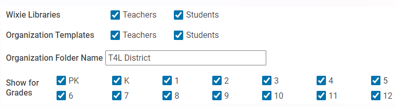
Students can open templates from Wixie’s curriculum library, as well as the templates created by their school or district. Adjust the check boxes to choose which template libraries students and teachers can use.
Use the Show for Grade check boxes to set which grade-level templates you’d like to display for your organization. Uncheck boxes for the grades who are not using Wixie so that students and teachers only see templates relavent to their level.
Preferences
You can adjust these Wixie preferences for your entire organization as well as each individual grade level.
By default, the preferences are set to the entire organization and changes you make to these settings will immediately apply and affect all users.
Use the My Organization drop down if you want to select and modify the settings for a specific grade only.
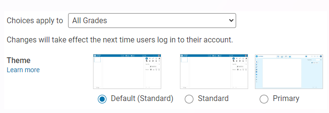
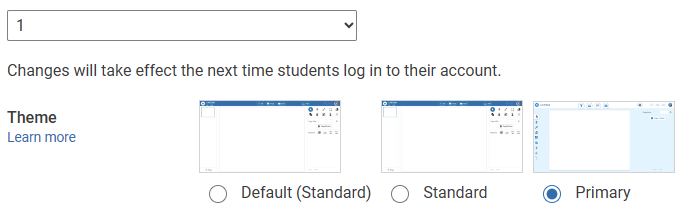
Theme: Wixie has both a standard and primary user interface. Choose the interface you want students to use. Teachers are able to override this setting to personalize Wixie for individual students.
Language: By default, Wixie is set to display text in English. Use the pull-down menu to change the language to French or Spanish.
Open to: When students log in they arrive at their student home page where they can see new assignments, start a blank project, open a project they have already created, and more. If you prefer students open to a new blank project, use the pull-down menu to choose “Blank Project.”
Project List: By default, projects will appear in Grid View. Use the pull-down menu to change the setting to List View to view projects as a list.
New Project Prompts: Choose whether students and teachers see a list of project prompts at the top of their project list when they log in.
Objects: Choose the size you want stickers to appear on the page when adding images to a project.
Video: By default, the video option is enabled so that users can create and add videos to their projects. At the pull down, you have the option to disable video or block YouTube.
Collaboration: Wixie allows teachers and students to collaborate on projects in teams. By default, collaboration is turned on. Use the radio buttons to turn off collaboration in your organization if you wish. If you prefer to only have teachers initiate team projects, select the radio button to ONLY allow teachers to create team projects.
Text: Customize the default font, size, and alignment of text.
Speech: You can adjust the voice and the speed in which voice is spoken under each drop-down.
Spell Check: Choose whether Wixie uses the browser's default spell check in text objects.
Dictation: By default, dictation is turned on. Select No if you do not want dictation turned on.
LMS Submit: Change this setting to No if you do not want users to be able to mark projects complete in your LMS.
Done Button: When students are working on assignments, there is a Done button to mark their projects are complete. Select No to remove the Done button from the instructions panel.
Erase Page Button: By default, the Erase Page Button is not shown on the Eraser Panel. You can change it to yes if you want users to be able to erase the entire page.
Zoom: You can turn off the Zoom button for users.
Google Drive: Users can add images to Wixie from their Google Drive by default. Select No if you do not want users to be able to add images to Wixie from Google Drive.
Pixabay: Wixie can access over a million images from the Pixabay image library. Use the radio buttons to turn access to this library on or off.
Changes you make to these settings will immediately apply and affect all users.
Integrations
By default, Wixie is set to include Google Classroom integrations. When the box is selected, users can share their projects to Google Classroom.
Course Sharing
Wixie allows teachers to add co-teachers to their classes and teachers can create their own custom classes for any students who are on the organization’s roster. This is helpful when specialty teachers need to work with a specific set of students. You can uncheck either box if you do not want teachers to add co-teachers or create a custom class of students. This does not affect the data on your roster. Only the teacher can see custom classes or co-teachers.
Academic Standards
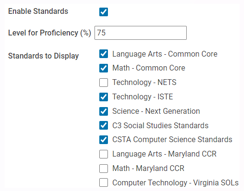
Student work in Wixie can be connected to standards including Common Core, Virginia SOLs, Texas TEKS, Maryland CCR, Next Generation Science Standards, and ISTE Standards for Students. When students complete activities that have been correlated, or teachers connect their original work to standards, the result is displayed to teachers in the Standards view.
Choose the Standards you want Wixie to display for your users. You can disable this option by unchecking the Enable Standards box.