You can add multiple student’s projects to the showcase folder to share their work
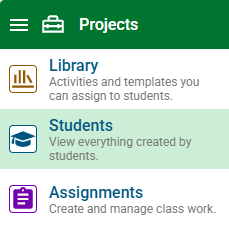
Click the main menu and choose Students.
Select the Class button and choose the class whose work you want to combine.

Use the Show pull-down menu to filter to the specific student work you want to combine.
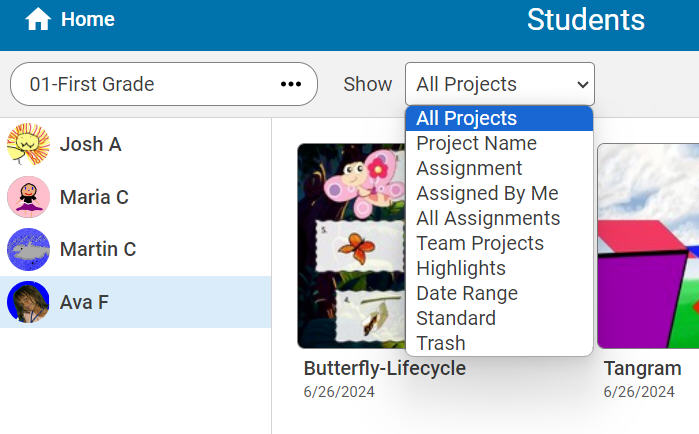
To see the work of all students, select the Entire Class button.

Click the Select Projects button.

All projects that match your filter will be selected.
Click to deselect any projects you do not want to include.
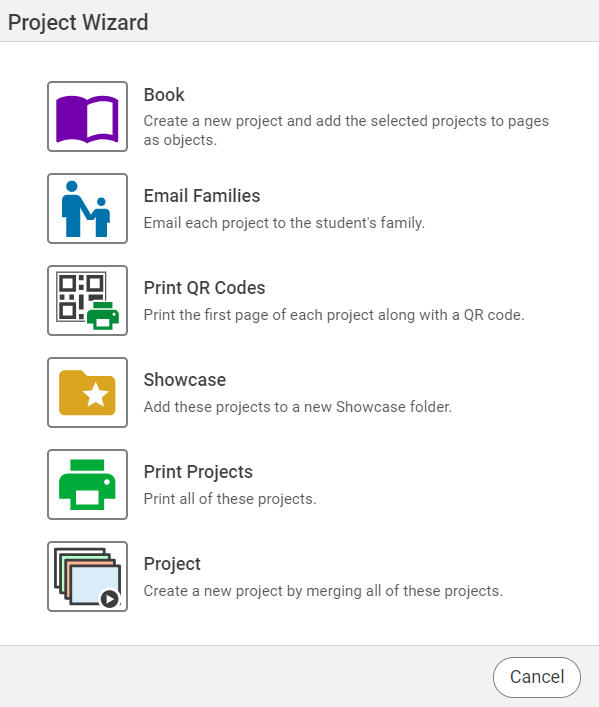
Select the Project Wizard button.

You will see the Project Wizard dialog.
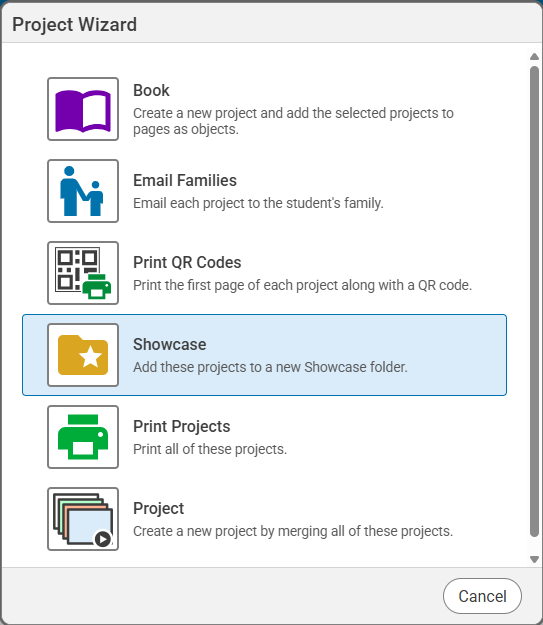
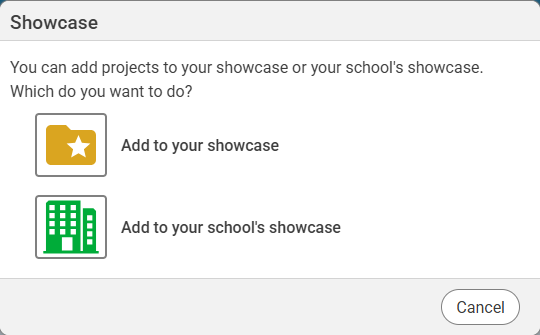
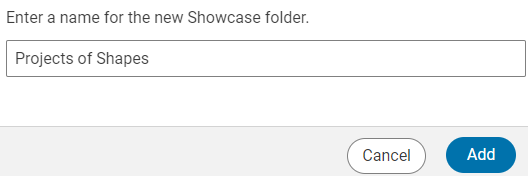
A dialog will appear where you can name the folder that will contain all the projects.
Select the Showcase folder at your home page to open the folder and view the collected projects.