
You can print projects for an entire class at the same time.
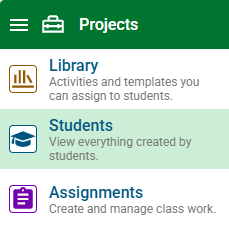
Click the main menu and choose Students.
Select the Class button and choose the class whose work you want to combine.

Use the Show pull-down menu to filter to the specific student work you want to combine.
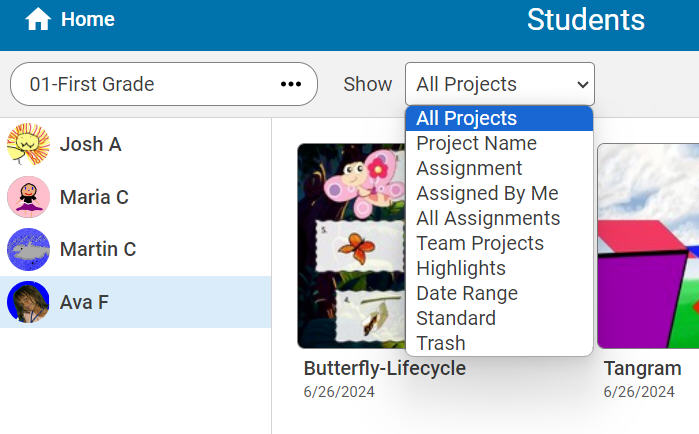
Add in the details you need to find the project and select the Search (magnifying glass) button.

To see the work of all students, select the Entire Class button.

Click the Select Projects button.

All projects that match your filter will be selected.
Click to deselect any projects you do not want to include.
Select the Project Wizard button.

You will see the Project Wizard dialog.
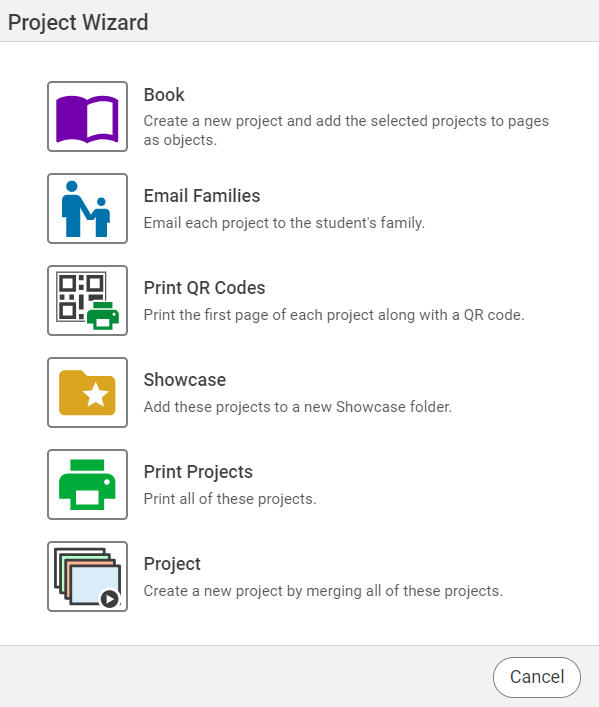
Select the Print option.
You will see the Print dialog.
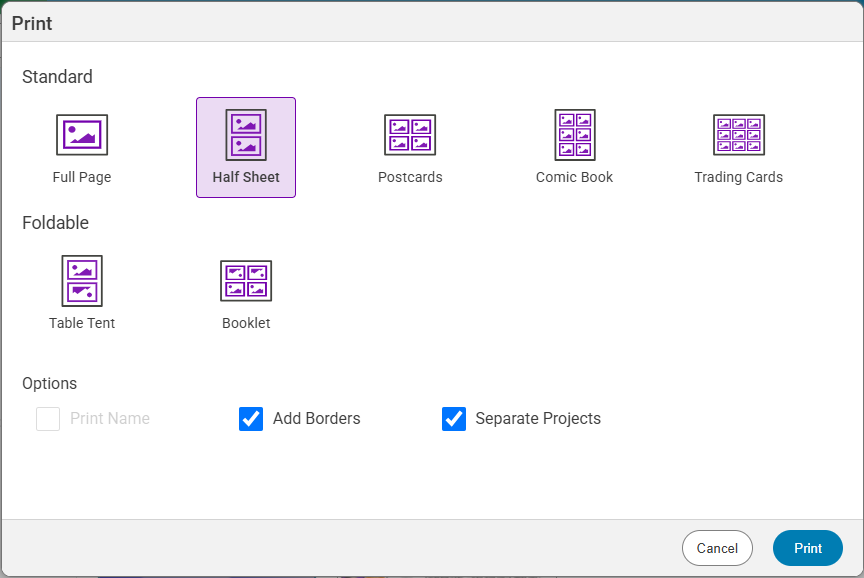
Click the layout you want to print.
If you are printing a full sheet and want to print student names on the paper, click the Print name check box.
Click the layout you want to print.
If you are printing multiple pages per sheet, each project will start on a new sheet. If you want to collapse them so a new project starts in the next available cell, uncheck the Separate check box.
Click the Print button.
Click the Print button.