
You can change the presentation settings to make your project a page-turner.
This will set your project to display as a book with a two-page spread and page turn transition.
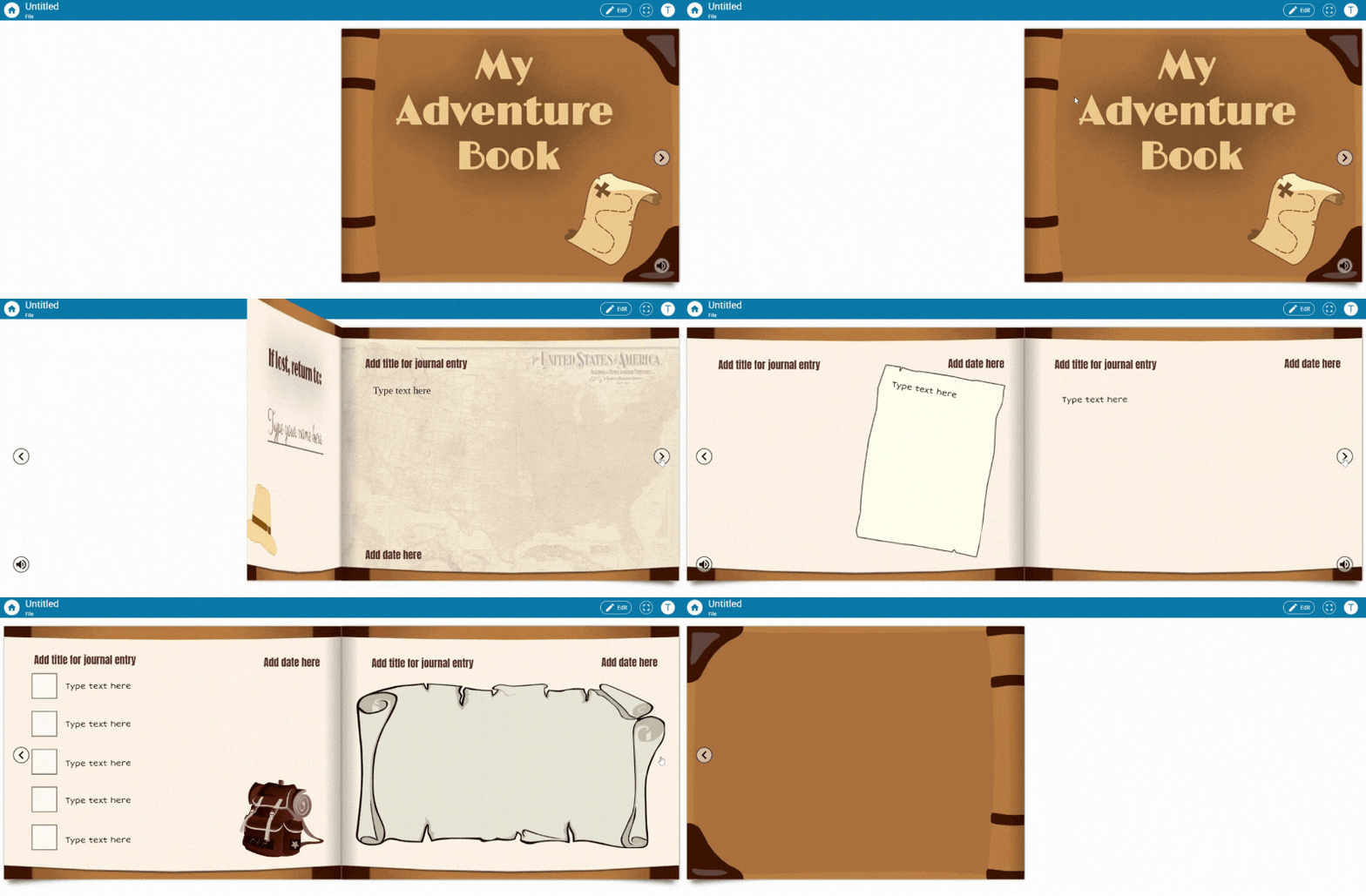
Create a project with more than one page.
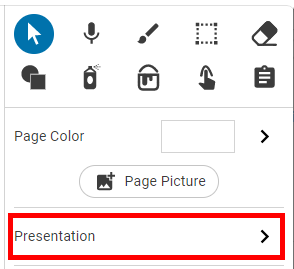
Select the Arrow tool on the tool palette.
Select the right arrow on the Options panel to see more Presentation options.
Select the Book layout button.
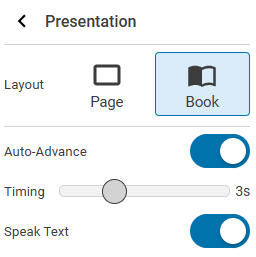
Use the switches to choose the settings you want for your book.
For example, turn on the Speak Text option so that the book reads itself when changing pages.
If you want the project viewer to turn the page on their own, move the Auto Advance slider to the off position.