
You can use a picture as the color for text.
Click the Text button on the toolbar.

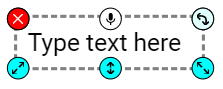



You will see a text object in the middle of the page.
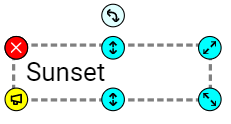
Type the text that you want.
Click away from the text object.
Click the text object to select it.
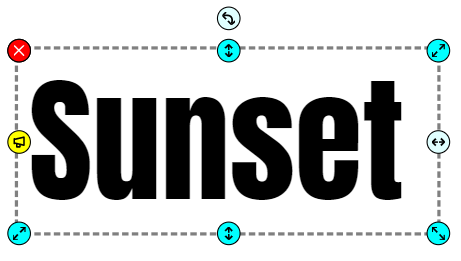
Use the tools on the editing panel to select a font. Thick fonts, such as Anton and Luckiest Guy, work best.
Make the text larger.
Resize the text object so the text wraps the way you want it.
Click the Image button on the toolbar.
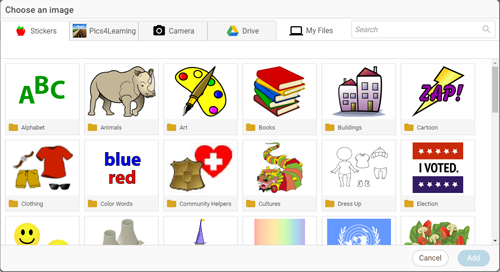
You will see the Choose an image dialog.
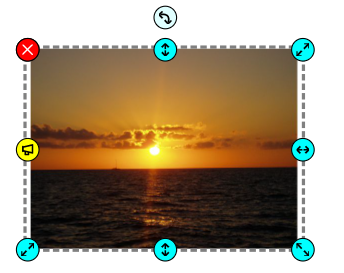
Add the image you want to use with the text.
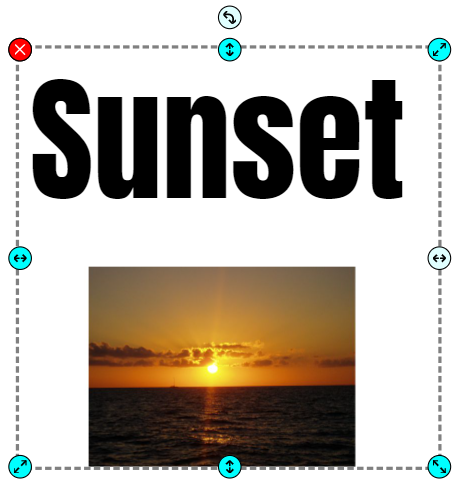
Select both the image and the text object. You can either drag to select both objects or click the image and then shift+click the text object.
Click the Image to Text button on the editing panel.
The image will be added as the color of the text.
You can keep or delete the image if you want. It is no longer needed for the text.
These cool words make great headings for pages and book titles. You can also use cool words to create visual vocabulary cards that provide a visual cue to the meaning of the term.