
Wixie Update - Object Placeholders
With this latest Wixie update, teachers can add media placeholders to your assignments. When students click a placeholder, the dialog to complete that action opens immediately, so they don't even need to know how to use Wixie!
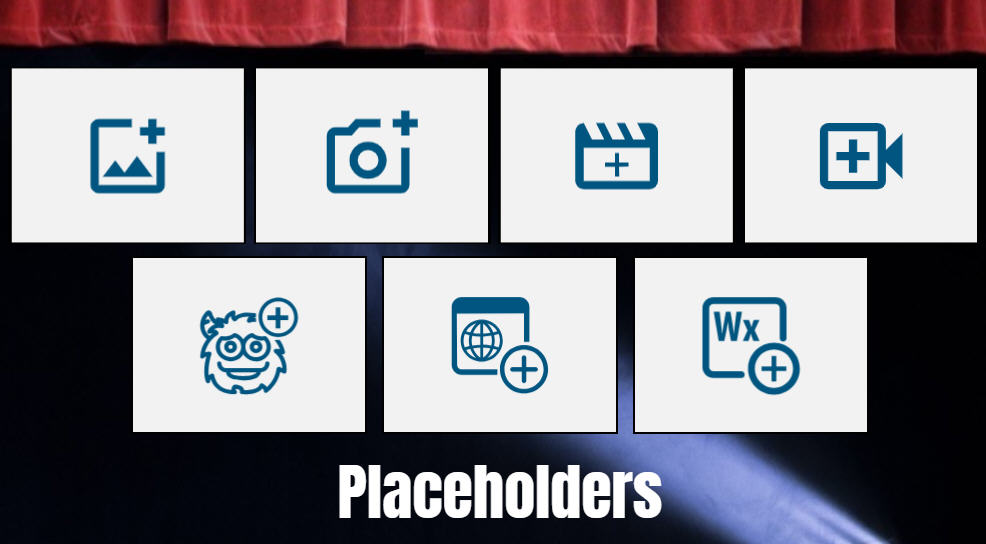
You can add placeholders to make it easier for students to add images and video, capture images and videos, add talkies, embed Wixie projects, and embed web pages into their projects.
Add a Placeholder

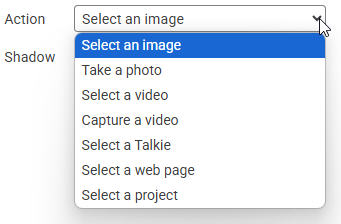
Use a Placeholder
Students simply click the placeholder jump immediately into the needed dialog.
For example, if you added a widget to add a talkie, when students click it, they can immediately choose the talkie they want without having to know how to go to the Widgets button. This works even if you have that button hidden in project settings.
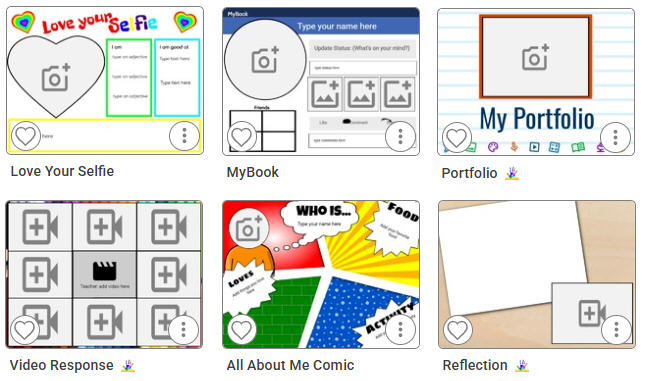
Placeholders are already embedded in many templates and activities.
Related: Replace an Object
Whether you added media through a placeholder or not, you can always change your mind.
To replace media, use the More handle in the lower left corner of an object and choose Replace.
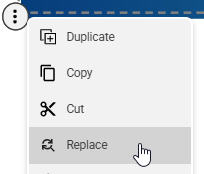
Depending on the type of media, Wixie will open the media dialog for that object type (image/video/talkie) to let you choose a new one.
This is a great way to quickly brainstorm ideas using the Mind Mapping tool and then change a text symbol into an image!
 Effective Integration
 Instructional Design
 Learning Strategies
 Literacy
 Month-by-Month
 Product Ideas
 STEM/STEAM
 Share and Showcase
 Updates
 User Management