
Managing student work using Assignments
The Wixie assignment tools make it easy to manage student learning.
Assigning work to students lets them know how you want them to use Wixie and makes it easy to manage their work, provide feedback, and evaluate effort and achievement.
Creating assignments
You can create assignments for students that show at the top of their Wixie home page when they log in.
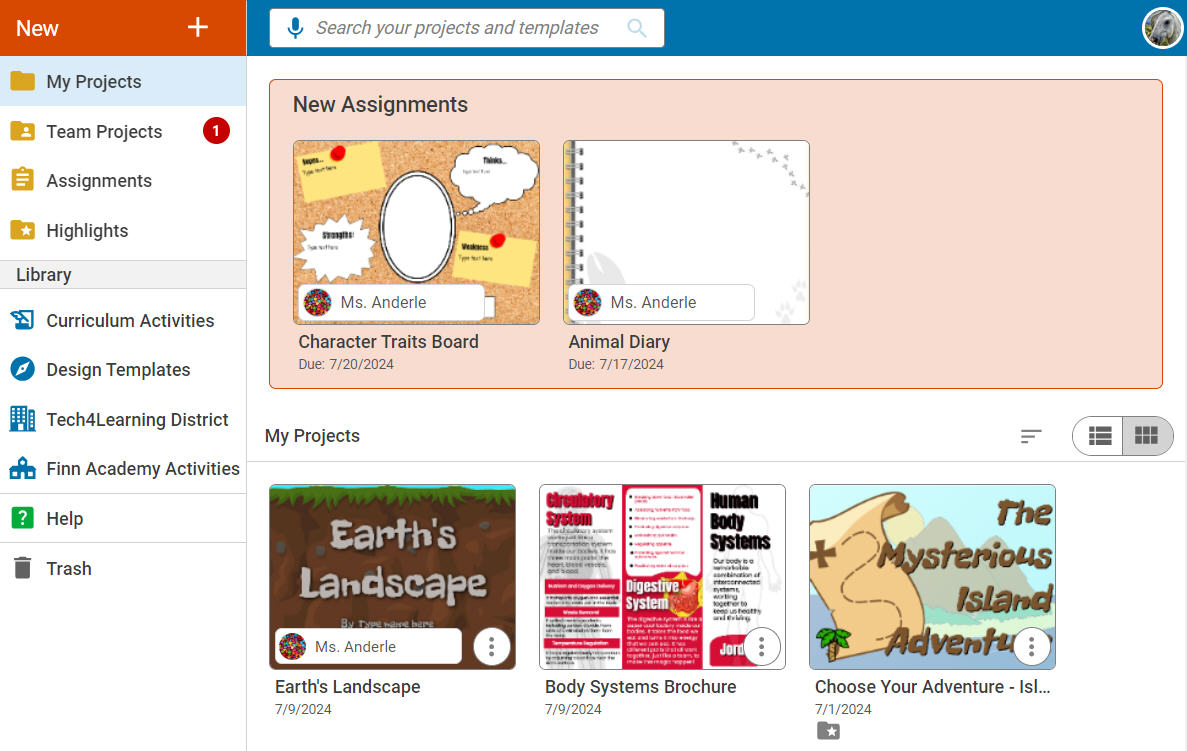
Assignments only show at the top of students' home pages starting the date you have selected. You can create all the assignments at one time for a week, but they will only show for students on the days you have chosen.
Use the How to Assign a Template help article to learn the steps in this process.
Viewing student assignment work
The fastest way to see how students are progressing on assignments is on the Assignments details page. To view progress on an assignment, select the Assignments button on the left side of your Wixie home page.
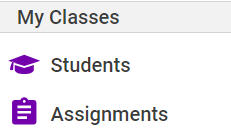
Use the Class pull-down menu to select the class you want to view, if it is not already shown. Then, click the assignment you want to monitor to see details.
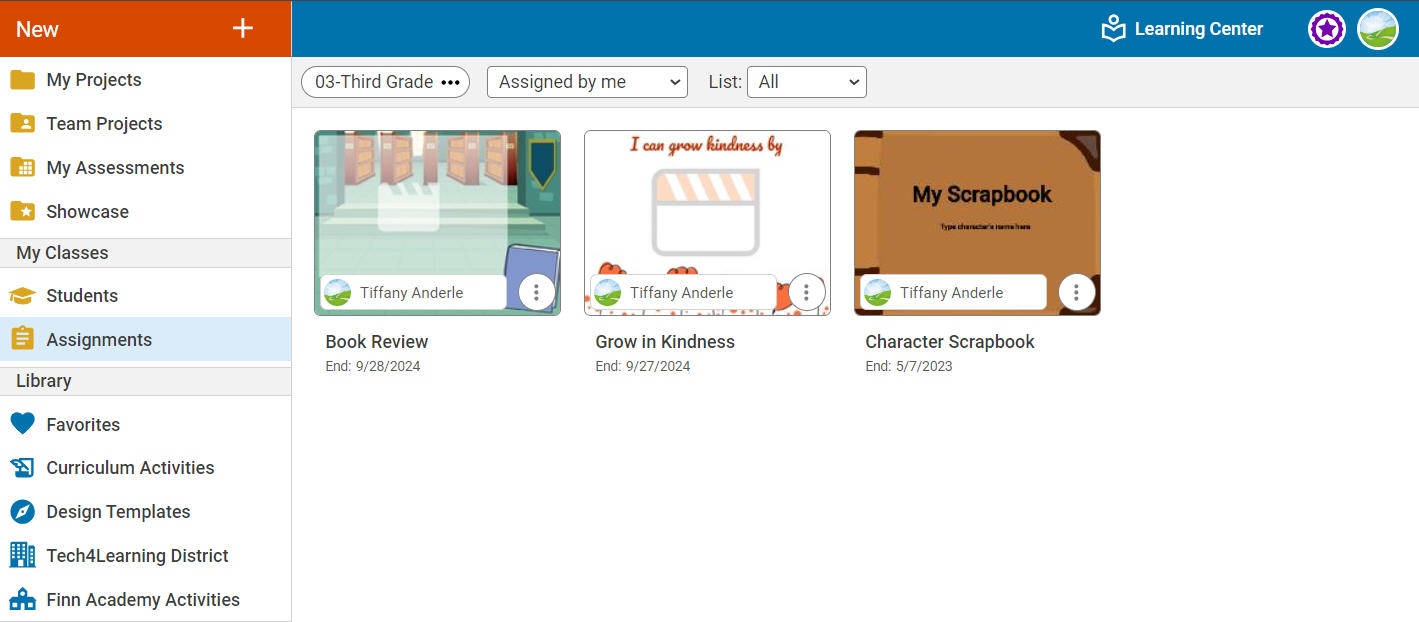
You will see the assignment details page. If an assignment is grayed out, it means that the student has not started the activity, yet.
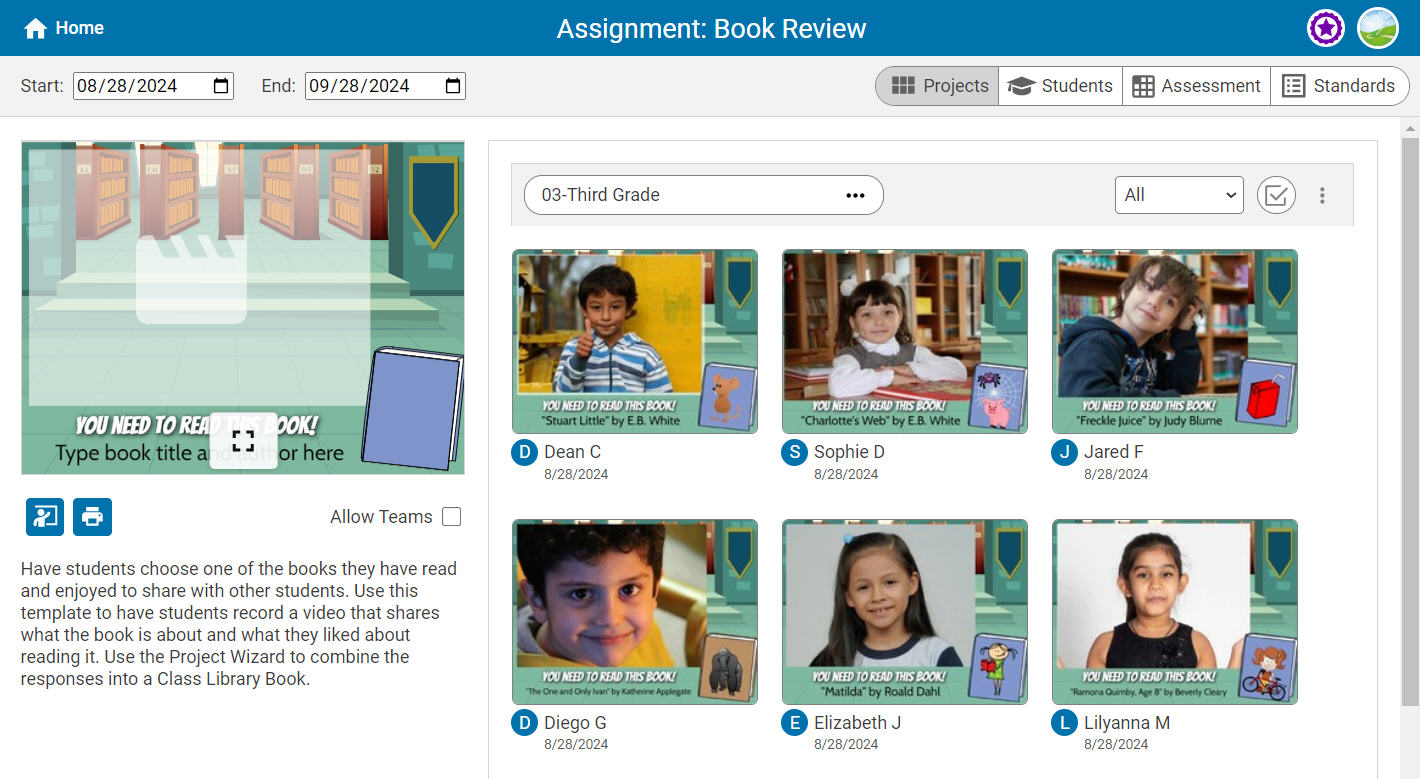
To view each student's work, click on a project. You will see all of the work tied to this assignment.
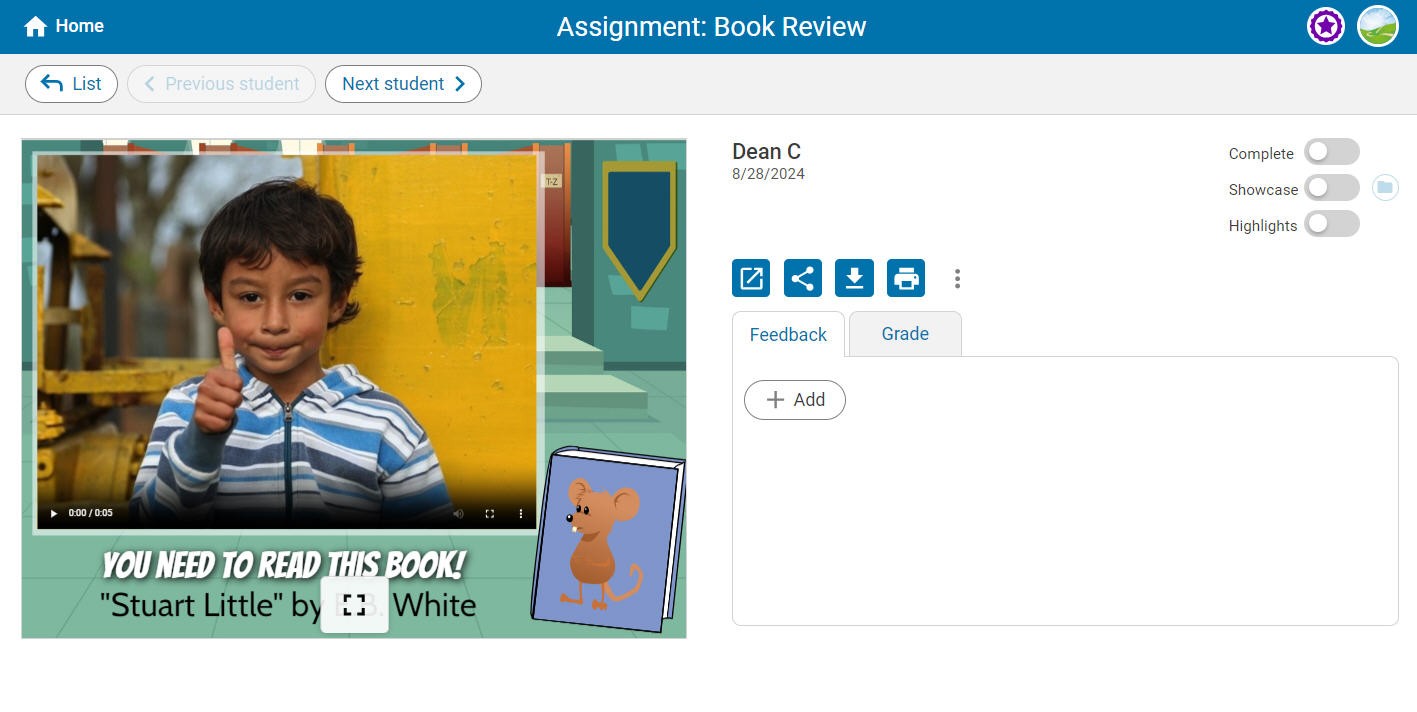
Use the navigation buttons at the top to flip through all of the projects that students in your class created.

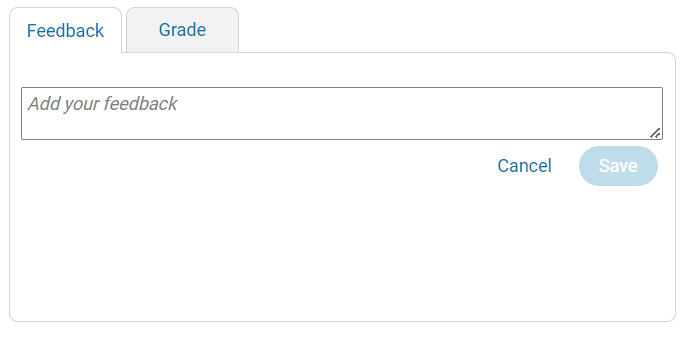
You can easily provide feedback on each student's project by clicking the +Add button on the Feedback tab.
To quickly monitor progress on the assignment, click the List button.
Then, select the Student tab.

Next to each student’s name, you will see a circle.
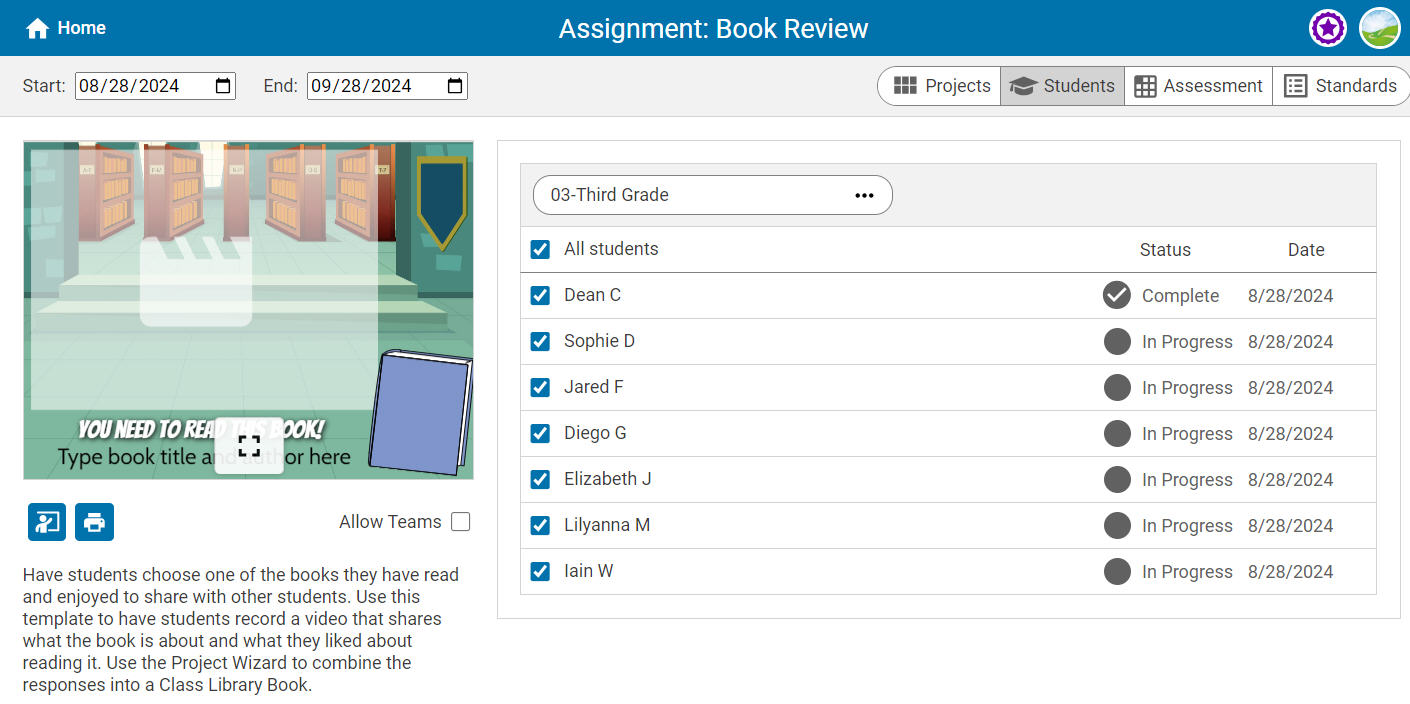
- An empty circle means that they have not started working on the assignment.
- A solid grey circle means that they have worked on it.
- A solid grey circle with a check in the middle means the student has marked the project as complete.*
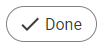
*Students working on assignments or templates have a button on the instruction panel to submit their work and let their teachers know that they have completed the assignment.
 Effective Integration
 Instructional Design
 Learning Strategies
 Literacy
 Month-by-Month
 Product Ideas
 STEM/STEAM
 Share and Showcase
 Updates
 User Management